
Check Out These Tips and Shortcuts to Insert and Format SmartArt in PowerPoint
by Avantix Learning Team | Updated September 1, 2026
Applies to: Microsoft® PowerPoint® 2016, 2019, 2021, 2024 and 365 (Windows)
If you're inserting and formatting SmartArt in PowerPoint, there are several tips and shortcuts you can use to work faster with SmartArt objects.
Some of the following shortcuts are sequential shortcuts so Alt > N > M would mean press Alt, then N and then M.
Recommended article: How to Insert SmartArt in PowerPoint (5 Ways)
Do you want to learn more about PowerPoint? Check out our virtual classroom or in-person classroom PowerPoint courses >
Insert a SmartArt object on a slide
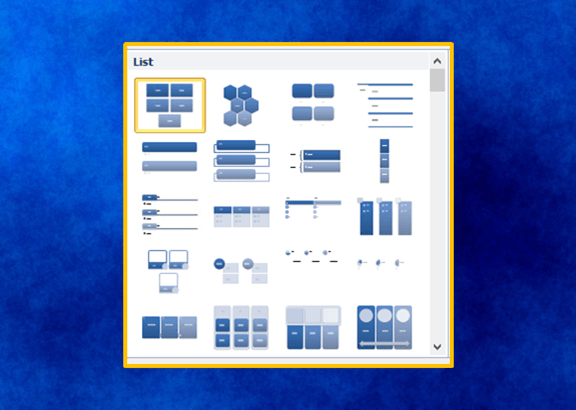
Press ALT > N > M. The gallery appears. Press tab to move to the list of layouts. Keep pressing arrow keys until the desired SmartArt object is selected and then press Enter.
Below is the SmartArt Gallery in PowerPoint:

Select a SmartArt object with a keyboard
Keep pressing Escape until no object is selected and then keep pressing Tab until the desired SmartArt object is selected.
Move between shapes in a SmartArt object using a keyboard
Select the SmartArt object or one shape in the SmartArt object and then keep pressing Tab to move to the next shape.
Display the Text Pane
Select a SmartArt object and then press Alt > JS > X.
Switch between the Text Pane and the SmartArt object
Press Ctrl + Shift + F2.
Select multiple shapes using the Text Pane
Select a line of text in the Text Pane and then press Shift + down arrow to select additional shapes.
Indent text in the Text Pane
With the cursor positioned in a line of text in the Text Pane, press Tab.
Outdent text in the Text Pane
With the cursor positioned in a line of text in the Text Pane, press Shift + Tab.
Increase the size of a shape
With a shape selected, press Shift + up arrow or Shift + right arrow.
Decreate the size of a shape
With a shape selected, press Shift + down arrow or Shift + left arrow.
Increase the size a shape in small increments
With a shape selected, press Ctrl + Shift + up arrow or Shift + right arrow.
Decrease the size of a shape in small increments
With a shape selected, press Ctrl + Shift + down arrow or Shift + left arrow.
Reorder a shape up in a SmartArt object
With a shape selected, press Alt > JS > U.
Reorder a shape down within the SmartArt object
With a shape selected, press Alt > JS > W.
Move a shape
With a shape selected, press an arrow key to move a shape in the direction of the arrow.
Nudge a shape in small increments
With a shape selected, press Ctrl + an arrow key to nudge in the direction of the arrow.
Open the SmartArt Layout Gallery
Select the SmartArt object and press Alt > JS > L > M.
Rotate a shape by 15 degrees
With a shape selected, press Alt + right arrow or Alt + left arrow.
Rotate a shape by 1 degree
With a shape selected, press Ctrl + Alt + right arrow or Ctrl + Alt + left arrow.
Reset a SmartArt object
With the SmartArt object selected, press Alt > JS > E. This will remove all custom formatting.
This article was originally published on September 10, 2017 and has been updated for clarity and content.
Subscribe to get more articles like this one
Did you find this article helpful? If you would like to receive new articles, JOIN our email list.
More resources
How to Rotate Objects in PowerPoint
How to Print a PowerPoint Presentation with Notes
How to Remove the Background of an Image in PowerPoint
How to Animate Text, Images and Other Objects in PowerPoint
How to Quickly Remove All Speaker Notes in PowerPoint (PC or Mac)
Related courses
Microsoft PowerPoint: Intermediate / Advanced
Microsoft PowerPoint: Design for Non-Designers
Microsoft PowerPoint: Animations Bootcamp
Our instructor-led courses are delivered in virtual classroom format or at our downtown Toronto location at 18 King Street East, Suite 1400, Toronto, Ontario, Canada (some in-person classroom courses may also be delivered at an alternate downtown Toronto location). Contact us at info@avantixlearning.ca if you'd like to arrange custom instructor-led virtual classroom or onsite training on a date that's convenient for you.
Copyright 2026 Avantix® Learning
You may also like
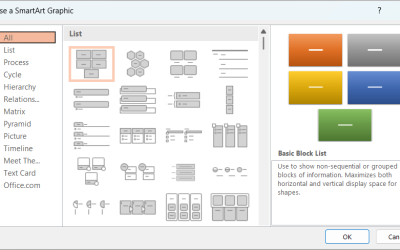
How to Insert SmartArt in PowerPoint (5 Ways)
SmartArt graphics are pre-defined graphics that are treated as one object and follow the document theme, font theme and color theme unless a user manually changes the font and font and shape colors. SmartArt graphics are also "smart" in several ways such as resizing other components if a new shape is added and changing font size. You can insert SmartArt in several ways in PowerPoint. SmartArt objects are typically inserted on PowerPoint slides in Normal View.
How to Print a Word Document Without Comments
If you or another user have added comments in a Word document, you may want to print the document without comments. By default, when you print a Word document, comments are printed as well. There are a few ways you can print a Word document without printing the comments – hide the comments or change print settings. If you use either of these strategies, the comments are not deleted.

How to Cut, Copy and Paste Text in Word (5 Ways with Shortcuts)
In this guide, we'll cover 5 ways to cut, copy and paste text in Microsoft Word. A common method is to use keyboard shortcuts but you can also use the Ribbon, the context menu and a few hidden tools as well. After you paste your text, you can choose paste options such as Keep Text Only.
Image credit(s) / application screenshot(s): Microsoft
Microsoft, the Microsoft logo, Microsoft Office and related Microsoft applications and logos are registered trademarks of Microsoft Corporation in Canada, US and other countries. All other trademarks are the property of the registered owners.
Avantix Learning |18 King Street East, Suite 1400, Toronto, Ontario, Canada M5C 1C4 | Contact us at info@avantixlearning.ca


