Easily Cut, Copy and Paste Text in Microsoft Word
by Avantix Learning Team | Updated March 29, 2026
Applies to: Microsoft® Word® 2016, 2019, 2021, 2024 or 365 (Windows)
In this guide, we'll cover 5 ways to cut, copy and paste text in Microsoft Word. A common method is to use keyboard shortcuts but you can also use the Ribbon, the context menu and a few hidden tools as well. After you paste your text, you can choose paste options such as Keep Text Only.
Contents
- Overview of cut, copy and paste
- Use keyboard shortcuts to cut, copy and paste
- Right-click to cut, copy and paste
- Use the Ribbon to cut, copy and paste
- About paste options
- Use the Spike to cut, copy and paste
- Move text using drag and drop
- Final thoughts
Do you want to learn more about Word? Check out our virtual classroom or in-person Word courses >
Recommended article: How to Add Page Numbers in Word
Note: Ribbon tabs and buttons may display in a different way (with or without text) depending on your version of Word, the size of your screen and your Control Panel settings. Depending on your version of Word, Ribbon tabs may appear with different names. For example, the Picture Format tab may appear as Picture Tools Format. Screenshots in this article are from Word 365 but are similar in other versions of Word.
Overview of cut, copy and paste
When you cut text, it is removed from its original location and placed in the Clipboard on your device. You can cut or copy text from the current document, another document or another program. When you copy text, a copy is placed in the Clipboard on your device.
When you paste text, a copy is pasted from the Clipboard. This is why you can paste multiple times after cutting or copying text.
Use keyboard shortcuts to cut, copy and paste
You can use common shortcuts to cut, copy and paste in Word. These shortcuts work in most other applications as well.
To cut or copy text and then paste it using keyboard shortcuts:
- Select the text you want cut or copy.
- Press Ctrl + X to cut it or Ctrl + C to copy it. The text will be placed in the Clipboard.
- Position your cursor where you want to paste the text.
- Press Ctrl + V. The text will be pasted in the new location.
Right-click to cut, copy and paste
You can also right-click to cut, copy and paste text.
To cut, copy and paste text by right-clicking (and use the context menu):
- Select the text you want cut or copy.
- Right-click the text or press Shift + F10 (some users may needs to press Fn + Shift + F10). A drop-down menu appears (called the context menu).
- Select Cut or Copy. The text will be placed in the Clipboard.
- Position your cursor where you want to paste the text.
- Right-click or press Shift + F10 or Fn + Shift + F10. A drop-down menu appears.
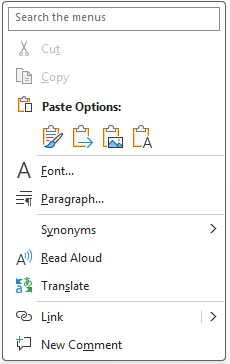
- Hover over the paste options (tips will appear) and click the desired option. Alternatively, you can choose Paste Special. If you choose Paste Special, a dialog box appears where you can select other paste options and then click OK. See below for information about paste options. The text will be pasted in the new location.
The context menu appears as follows when you right-click to paste in a Word document:
Use the Ribbon to cut, copy and paste
You can also use the Ribbon to cut, copy and paste text. This method offers other options for pasting.
To cut, copy and paste text using the Ribbon:
- Select the text you want cut or copy.
- Click the Home tab in the Ribbon.
- Click Cut or Copy in the Clipboard group. The text will be placed in the Clipboard.
- Position your cursor where you want to paste the text.
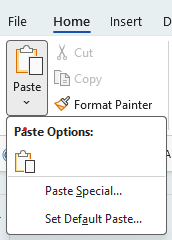
- Click the arrow below Paste in the Clipboard group.
- Hover over the paste options (tips will appear) and click the desired option. Alternatively, you can choose Paste Special. If you choose Paste Special, a dialog box appears where you can select other paste options and then click OK. See below for information about paste options. The text will be pasted in the new location.
Below is the Paste drop-down menu in the Ribbon with paste options:
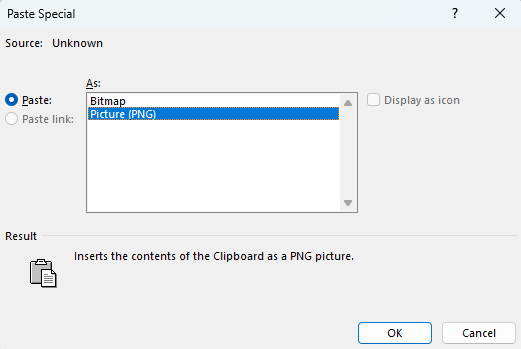
If you select Paste Special, the dialog box appears as follows (with the Paste button selected):
About paste options
If you select the Paste Options icons (which appear in the Paste drop-down menu in the Ribbon or when you right-click to paste), you can choose from the following options:
- Keep Source Formatting keeps formatting for the original selection.
- Merge Formatting changes the formatting of the pasted text to match the formatting of the text in the location where it is pasted. This option does not remove character formatting from text within the selection such as bold, italics and font color.
- Picture pastes the text as an image (available in Word 365).
- Keep Text Only removes all formatting from the original text and the pasted text takes on the formatting of the text in the location where it is pasted. This is a common option if you are pasting from a website into Word.
- Paste Special displays the Paste Special dialog box which offers other options such as pasting in HTML format or as an object which is useful for data from Excel or unformatted Unicode text. It's important to note that the options will change if you have clicked Paste or Paste Link on the top left of the dialog box. The shortcut for Paste Special is Ctrl + Alt + V.
Paste options also appear after you have pasted text. Simply click the Smart Tag the appears to the right of pasted text and select your preferred option.
Use the Spike to cut, copy and paste
The Spike (or enhanced Clipboard) is a hidden tool in Microsoft Word that allows you to cut, copy and paste multiple items.
To cut, copy and paste text using the Spike in Word:
- Click the Home tab in the Ribbon.
- In the Clipboard group, select the dialog box launcher (the button on the bottom right of the Clipboard group).
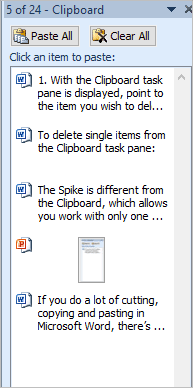
- The Spike or enhanced Clipboard task pane appears.
- Select the text you want cut or copy.
- Press Ctrl + X to cut the text or Ctrl + C to copy it. The item(s) will appear in the task pane. Repeat for other items you want to cut and / or copy (up to 24 items).
- Position your cursor where you want to paste the text.
- In the Spike or enhanced Clipboard task pane, click the item you want to paste. Repeat for other items.
For each item that is pasted, you can click the Smart Tag beside the pasted item and select other paste options if you want.
Notably, the Spike can be used to cut, copy and paste between documents.
Below is the Spike or Clipboard task pane with multiple items:
For more information about the Spike, check out the article Microsoft Word Trick for Supercharged Cut, Copy and Paste (The Spike).
Move text using drag and drop
Another hidden feature in Word is a tool called drag and drop which can be used to move text without using cut and paste. This tool does not use the Clipboard.
To move text using drag and drop:
- Select the text you want to move.
- Position your pointer over the selected text. Your pointer should change to an arrow.
- Hold down your left mouse button and drag the text to a new location (an I should appear at the new location).
- Release the mouse button.
If you drag and drop accidentally or to the wrong location, simply press Ctrl + Z to undo.
Final thoughts
It's common to use keyboard shortcuts to cut, copy and paste. However, the hidden methods we've shown offer some great advantages and so do the various paste options.
Subscribe to get more articles like this one
Did you find this article helpful? If you would like to receive new articles, JOIN our email list.
More resources
How to Double Space in Word (4 Ways)
How to Change Case in Word (3 Ways with Shortcuts)
How to Superscript or Subscript in Word (with Shortcuts)
4 Strikethrough Shortcuts in Microsoft Word to Cross Out Text
How to Copy Formatting in Word (3 Easy Ways with Shortcuts)
Related courses
Microsoft Word: Intermediate / Advanced
Microsoft Excel: Intermediate / Advanced
Microsoft PowerPoint: Intermediate / Advanced
Microsoft Word: Long Documents Master Class
Microsoft Word: Styles, Templates and Tables of Contents
Microsoft Word: Designing Dynamic Word Documents Using Fields
Our instructor-led courses are delivered in virtual classroom format or at our downtown Toronto location at 18 King Street East, Suite 1400, Toronto, Ontario, Canada (some in-person classroom courses may also be delivered at an alternate downtown Toronto location). Contact us at info@avantixlearning.ca if you'd like to arrange custom instructor-led virtual classroom or onsite training on a date that's convenient for you.
Copyright 2025 Avantix® Learning
You may also like

How to Insert or Type an Upside Down Exclamation Mark in Word (5 Ways to Insert ¡ with Shortcuts)
This guide covers five easy ways to insert or type the upside down exclamation mark (¡) in Microsoft Word including shortcuts, Alt codes and custom key combinations. The upside down exclamation mark or inverted exclamation mark is used in the Spanish language at the beginning of exclamatory sentences and helps readers understand tone before completing the sentence.

How to Insert or Type I with an Accent Mark in Word (Í, í, Ì, ì, Î, î, Ï, or ï)
You can insert or type i with an accent mark in Word using built-in tools or keyboard shortcuts (including Alt code shortcuts). The letter i can be inserted with an accent in both upper or lower case. The following are common accented characters that you can insert or type in Word in upper or lower case: grave (Ì or ì), acute (Í or í), circumflex (Î or î) and umlaut (Ï or ï).

How to Insert or Type A with an Accent Mark in Word (À, Á, Â, Ä, à, á, â, or ä)
You can insert or type a with an accent mark in Word using built-in tools or keyboard shortcuts (including Alt code shortcuts). The letter a can be inserted with an accent in both upper or lower case. The following are common accented characters that you can insert or type in Word in upper or lower case: grave (À or à), acute (Á or á), circumflex (Â or â) and umlaut (Ä or ä).
Image credit(s) / application screenshot(s): Microsoft
Microsoft, the Microsoft logo, Microsoft Office and related Microsoft applications and logos are registered trademarks of Microsoft Corporation in Canada, US and other countries. All other trademarks are the property of the registered owners.
Avantix Learning |18 King Street East, Suite 1400, Toronto, Ontario, Canada M5C 1C4 | Contact us at info@avantixlearning.ca