

Save Time Using These Formatting Tricks
by Avantix Learning Team | Updated September 23, 2020
Applies to: Microsoft® Publisher® 2010, 2013, 2016, 2019 and 365 (Windows)
You can save a lot of time using these formatting shortcuts in Microsoft Publisher and you can use these in Publisher 2010, 2013 and 2016 (Windows).
1. Display the Font dialog box
Select the text and press Ctrl + Shift + F to display the Font dialog box.
2. Remove formatting from the selected text
To remove formatting from the selected text and return it to the current style, press Ctrl + spacebar.
3. Increase font size by standard increments
Select the text and press Ctrl + Shift + > to increase font size by standard increments.
4. Decrease font size by standard increments
Select the text and press Ctrl + Shift + < to decrease font size by standard increments.
5. Increase font size by point
Select the text and press Ctrl + ] to increase font size by point.
6. Decrease font size by point
Select the text and press Ctrl + [ to decrease font size by point.
7. Copy formatting
Select the text with the formatting you want to copy and press Ctrl + Shift + C to copy to the clipboard.
8. Paste formatting
Copy formatting and then select the text you wish to copy the formatting to and press Ctrl + Shift + V to paste the formatting.
9. Apply italics
Select the text and press Ctrl + I to apply italics.
10. Apply bold
Select the text and press Ctrl + B to apply bold.
11. Apply underline
Select the text and press Ctrl + U to apply single underline.
12. Apply/remove superscript
Select the text and press Ctrl + Shift + = to apply or remove superscript.
13. Align text left
Select the text and press Ctrl + L to align to the left.
14. Align text right
Select the text and press Ctrl + R to align to the right.
15. Align text centre
Select the text and press Ctrl + E to align centre.
Subscribe to get more articles like this one
Did you find this article helpful? If you would like to receive new articles, join our email list.
Related
10 Great PowerPoint Drawing Tricks and Shortcuts
How to Embed a YouTube Video in PowerPoint
PowerPoint Slide Show Shortcuts (50+ Shortcuts)
Recommended courses
Microsoft Publisher: Introduction
Microsoft PowerPoint: Introduction
Microsoft PowerPoint: Intermediate / Advanced
Microsoft Word: Intermediate / Advanced
To request this page in an alternate format, contact us.
You may also like
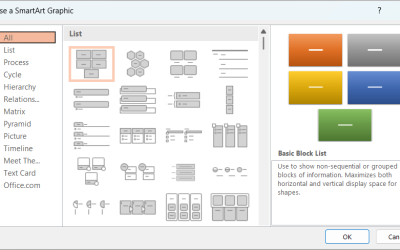
How to Insert SmartArt in PowerPoint (5 Ways)
SmartArt graphics are pre-defined graphics that are treated as one object and follow the document theme, font theme and color theme unless a user manually changes the font and font and shape colors. SmartArt graphics are also "smart" in several ways such as resizing other components if a new shape is added and changing font size. You can insert SmartArt in several ways in PowerPoint. SmartArt objects are typically inserted on PowerPoint slides in Normal View.
How to Print a Word Document Without Comments
If you or another user have added comments in a Word document, you may want to print the document without comments. By default, when you print a Word document, comments are printed as well. There are a few ways you can print a Word document without printing the comments – hide the comments or change print settings. If you use either of these strategies, the comments are not deleted.
How to Cut, Copy and Paste Text in Word (5 Ways with Shortcuts)
In this guide, we'll cover 5 ways to cut, copy and paste text in Microsoft Word. A common method is to use keyboard shortcuts but you can also use the Ribbon, the context menu and a few hidden tools as well. After you paste your text, you can choose paste options such as Keep Text Only.
Avantix Learning | 1 Yonge Street, Suite 1801 (Toronto Star Building), Toronto, Ontario, Canada M5E 1W7 | info@avantixlearning.ca


