

Curve text in PowerPoint Using WordArt Transform Options
by Avantix Learning Team | Updated January 15, 2026
Applies to: Microsoft® PowerPoint® 2019, 2021, 2024 and 365 (Windows)
You can curve text in PowerPoint using WordArt Transform options on the Shape tab in the Ribbon. The text can be WordArt text or text in a text box or in a placeholder. Using Transform text effects, you can curve or bend selected text. The text can be curved around a circle or other shape if you want. Typically, curved text is inserted in Normal View and can be a word or a line of text.
Contents
- Insert WordArt text (option 1)
- Insert a text box (option 2)
- Insert text in a placeholder (option 3)
- Curve text using Transform options
- Modify curved text
- Curve text around a circle
- Final thoughts
Note: Buttons and Ribbon tabs may display in a different way (with or without text) depending on your version of PowerPoint, the size of your screen and your Control Panel settings. Screenshots in this article are from 365 but are similar in other versions of PowerPoint.
Recommended article: 10 Ways to Compress PowerPoint Presentations to Reduce File Size
Do you want to learn more about PowerPoint? Check out our virtual classroom or in-person classroom PowerPoint courses >
Insert WordArt text (option 1)
One option is to insert WordArt text and then curve the text.
To insert WordArt text on a PowerPoint slide:
- In Normal View, select or display the slide where you want to insert WordArt.
- Click the Insert tab in the Ribbon.
- In the Text group, click WordArt. A drop-down menu appears.
- Click the WordArt style you want to use. WordArt text in inserted on the slide. Curved text can modified later.
- If necessary, click the WordArt object.
- Type the text you want.
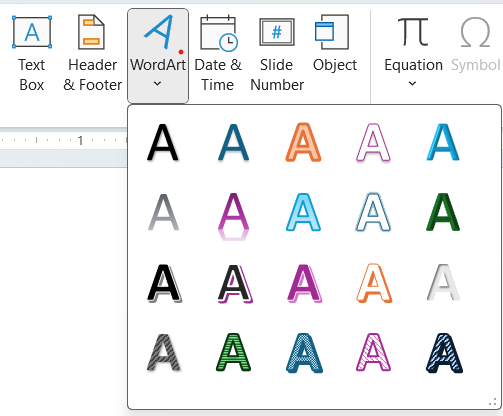
In the Word Art gallery (pictured below), you can select the WordArt style you want:
Insert a text box (option 2)
A second option is to insert a text box and then curve the text.
To insert a text box on a PowerPoint slide:
- In Normal View, select or display the slide where you want to insert the text box.
- Click the Insert tab in the Ribbon.
- In the Text group, click Text Box.
- Drag the pointer on the slide to create a text box.
- If necessary, click in the text box.
- Type the text you want.
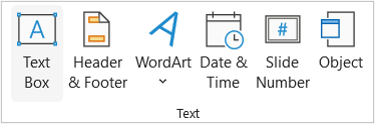
Text Box appears on the Insert tab in the Ribbon as follows:
Insert text in a placeholder (option 3)
A third option is to insert text in a placeholder. Placeholders appear as part of layouts.
To insert text in a placeholder on a PowerPoint slide:
- In Normal View, select or display the slide with a text or content placeholder where you want to insert text. The layout applied to the slide (through the Home tab in the Ribbon) must include a text or content placeholder (such as Title or Title and Content).
- Click in the placeholder.
- Type the text you want.
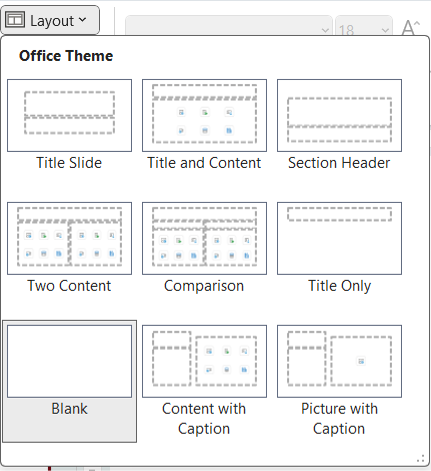
The Layout drop-down menu below appears on the Home tab in the Ribbon and includes multiple layouts available in the current presentation:
Curve text using Transform options
Regardless of the way you insert text, you can curve the text using WordArt Transform options.
To curve text on a PowerPoint slide:
- In Normal View, click the text you want to curve. For text boxes or text placeholders, click its edge.
- Click the Shape Format tab in the Ribbon.
- In the WordArt Styles group, click Text Effects. A drop-down menu appears.
- Select the curved style you want.
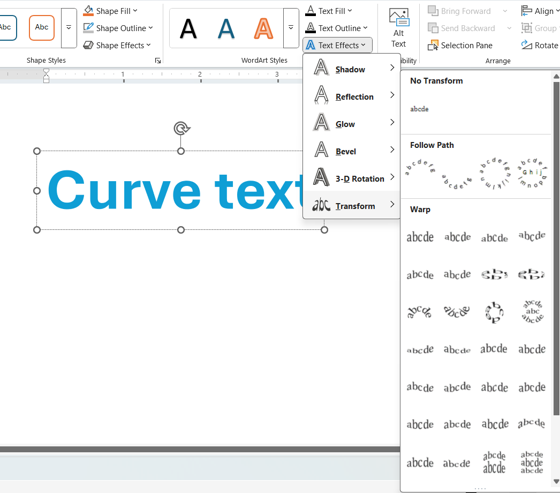
The WordArt Transform gallery below includes multiple curved text options:
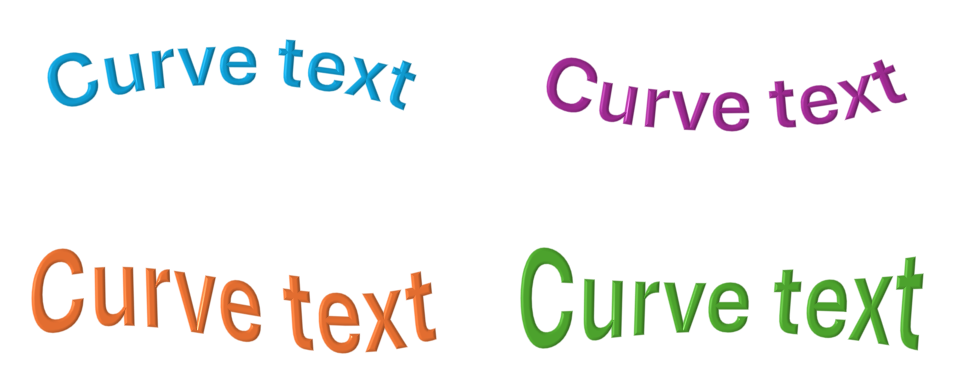
In the examples below, several different curved transform styles have been applied to the text:
Modify curved text
After you have transformed the text, you can modify it in several ways.
To resize the curved text object:
- Select the curved text.
- Drag any of the circular sizing handles to resize the text object or change the curve.
To change the font, size or font color using the Home tab in the Ribbon:
- Click or drag over the curved text.
- Click the Home tab in the Ribbon.
- Select the desired font, size or font color in the Font group.
To change spacing between letters using the Font dialog box:
- Select the text.
- Right-click the text and select Font from the drop-down menu. A dialog box appears.
- Click the Character Spacing tab.
- Click the up arrow beside By to increase the spacing between the letters. Click the down arrow beside By to decrease the spacing between letters.
- Click OK.
To change text effects using WordArt options:
- Select the text.
- Click the Shape tab in the Ribbon.
- In the WordArt styles group, select options from Text Fill, Text Outline or Text Effects.
Curve text around a circle
To curve text around a circle on a PowerPoint slide:
- In Normal View, click the Insert tab in the Ribbon.
- In the Illustrations group, click Shapes.
- Click the oval.
- Hold down Shift and drag on the slide to create a circle.
- Click the text you want to curve around the circle. For text boxes or text placeholders, click its edge.
- Click the Shape Format tab in the Ribbon.
- In the WordArt Styles group, click Text Effects. A drop-down menu appears.
- Select Circle under Follow Path.
- Drag the text object to position it around the circle.
- Drag any of the circular sizing handles to resize the text object and move the handles closer to the circle.
- Change the font size and character spacing as needed.
In the following example, WordArt has been curved around a circle, the handles have been dragged closer to the circle and the character spacing has been adjusted:

Final thoughts
You can curve WordArt or text in a text box or placeholder in PowerPoint. You can control the angle of your WordArt text in relation to your shape using the Rotate tool.
Keep in mind that people may not be able to read curved text so it is typically used sparingly for design elements not for a lot of text in a presentation.
Subscribe to get more articles like this one
Did you find this article helpful? If you would like to receive new articles, JOIN our email list.
More Resources
How to Embed a YouTube Video in PowerPoint
How to Link to Another Slide in PowerPoint (3 Ways)
How to Add Background Music to Play on All Slides in PowerPoint
How to Add Slide Numbers in PowerPoint Presentations (Step by Step)
How to Insert a Video in PowerPoint (from a File on Your PC or Shared Drive)
Related courses
Microsoft PowerPoint: Intermediate / Advanced
Microsoft PowerPoint: Design for Non-Designers
Microsoft PowerPoint: Animations Bootcamp
Microsoft Excel: Intermediate / Advanced
Our instructor-led courses are delivered in virtual classroom format or at our downtown Toronto location at 18 King Street East, Suite 1400, Toronto, Ontario, Canada (some in-person classroom courses may also be delivered at an alternate downtown Toronto location). Contact us at info@avantixlearning.ca if you'd like to arrange custom instructor-led virtual classroom or onsite training on a date that's convenient for you.
Copyright 2025 Avantix® Learning
You may also like

How to Highlight or Draw on PowerPoint Slides During a Slide Show
You can highlight text in PowerPoint in many different ways. If you have PowerPoint 2019 or a later version, Text Highlight Color is available on the Home tab in the Ribbon. For those with older versions without a Highlight command in the Ribbon, you'll need to use other strategies to highlight text. In this article, we'll review five ways to highlight text in PowerPoint. Most of these strategies will work in all versions.
How to Highlight Text in PowerPoint (5 Ways)
You can highlight text in PowerPoint in many different ways. If you have PowerPoint 2019 or a later version, Text Highlight Color is available on the Home tab in the Ribbon. For those with older versions without a Highlight command in the Ribbon, you'll need to use other strategies to highlight text. In this article, we'll review five ways to highlight text in PowerPoint. Most of these strategies will work in all versions.

How to Link to Another Slide in PowerPoint (4 Ways)
You can easily add a link or hyperlink to another slide in the same PowerPoint presentation. In this article, we'll review 3 ways to link to another slide – using a link or hyperlink, adding an action setting or using the Zoom feature (Zoom & Link) to add a Slide Zoom. In order to make it easier to link to another slide, it's best to add a title in the title placeholder on each slide in the presentation. In PowerPoint, links become active when you run a slide show (click the Slide Show button on the bottom right of the screen). When you run a slide show and click a link, PowerPoint will jump to the link.
Image credit(s) / application screenshot(s): Microsoft
Microsoft, the Microsoft logo, Microsoft Office and related Microsoft applications and logos are registered trademarks of Microsoft Corporation in Canada, US and other countries. All other trademarks are the property of the registered owners.
Avantix Learning |18 King Street East, Suite 1400, Toronto, Ontario, Canada M5C 1C4 | Contact us at info@avantixlearning.ca


