
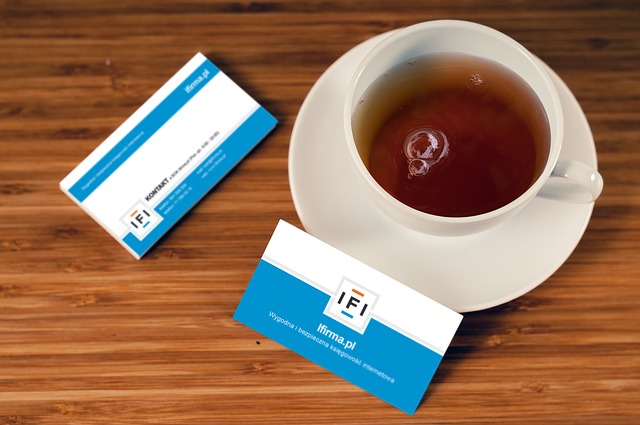
Publisher Offers a Low Cost Alternative for Designing Business Cards, Brochures, Flyers and Other Publications
by Avantix Learning Team | Updated September 23, 2020
Applies to: Microsoft® Publisher® 2010, 2013, 2016, 2019 and 365 (Windows)
Microsoft Publisher is an inexpensive program that can help business or education users create professional-looking business cards as well as publications like flyers, brochures, newsletters and posters. It is included with Microsoft Office Professional Pro Plus as well as various other installations of Microsoft Office and is often included in site licences for large organizations, school boards and higher education institutions.
Related: 15 Useful Formatting Shortcuts in Microsoft Publisher
So what are primary benefits of using Microsoft Publisher?
1. Affordable
Publisher is significantly cheaper than other desktop publishing programs and is often included as part of the Microsoft Office suite (depending on the version you have purchsed).
2. Easy to use
You can get up and running pretty quickly with Publisher, particularly if you already use Word and PowerPoint. Instead of creating a flyer, report cover, or invitation in Word or PowerPoint, consider using Publisher instead.
3. Templates
Microsoft Publisher comes with a large assortment of templates for flyers, posters, business cards, newsletters, report covers and other types of publications and they are installed with the program. These templates are also designed to have a cohesive look across different publications.
4. Mail merge and email merge feature
Publisher integrates mail merge features so that users have the ability to generate mail merges or email publications to a variety of clients or users. Documents can be exported as HTML (Hypertext Markup Language) or PDF (Portable Document Format) files.
5. Drag and drop from a library
You can drag and drop photos and building blocks into your publication to create a more professional looking document. The Publisher Library feature is a fantastic tool for storing repetitive content including pictures and text.
If you are looking for an affordable desktop publishing program and want to create business cards, post cards, flyers and newsletters, you might want to consider Microsoft Publisher. You may even already have a copy with your Microsoft Office suite.
Subscribe to get more articles like this one
Did you find this article helpful? If you would like to receive new articles, join our email list.
Related
10 Great PowerPoint Drawing Tricks and Shortcuts
How to Embed a YouTube Video in PowerPoint
PowerPoint Slide Show Shortcuts (50+ Shortcuts)
Recommended courses
Microsoft Publisher: Introduction
Microsoft PowerPoint: Introduction
Microsoft PowerPoint: Intermediate / Advanced
Microsoft Word: Intermediate / Advanced
To request this page in an alternate format, contact us.
Copyright 2025 Avantix® Learning
You may also like

How to Highlight or Draw on PowerPoint Slides During a Slide Show
You can highlight text in PowerPoint in many different ways. If you have PowerPoint 2019 or a later version, Text Highlight Color is available on the Home tab in the Ribbon. For those with older versions without a Highlight command in the Ribbon, you'll need to use other strategies to highlight text. In this article, we'll review five ways to highlight text in PowerPoint. Most of these strategies will work in all versions.
How to Highlight Text in PowerPoint (5 Ways)
You can highlight text in PowerPoint in many different ways. If you have PowerPoint 2019 or a later version, Text Highlight Color is available on the Home tab in the Ribbon. For those with older versions without a Highlight command in the Ribbon, you'll need to use other strategies to highlight text. In this article, we'll review five ways to highlight text in PowerPoint. Most of these strategies will work in all versions.

How to Curve Text in PowerPoint
You can curve text in PowerPoint using WordArt Transform options on the Shape tab in the Ribbon. The text can be WordArt text or text in a text box or in a placeholder. Using Transform text effects, you can curve or bend selected text. The text can be curved around a circle or other shape if you want. Typically, curved text is inserted in Normal View and can be a word or a line of text.
Microsoft, the Microsoft logo, Microsoft Office and related Microsoft applications and logos are registered trademarks of Microsoft Corporation in Canada, US and other countries. All other trademarks are the property of the registered owners.
Avantix Learning | 1 Yonge Street, Suite 1801 (Toronto Star Building), Toronto, Ontario, Canada M5E 1W7 | info@avantixlearning.ca


