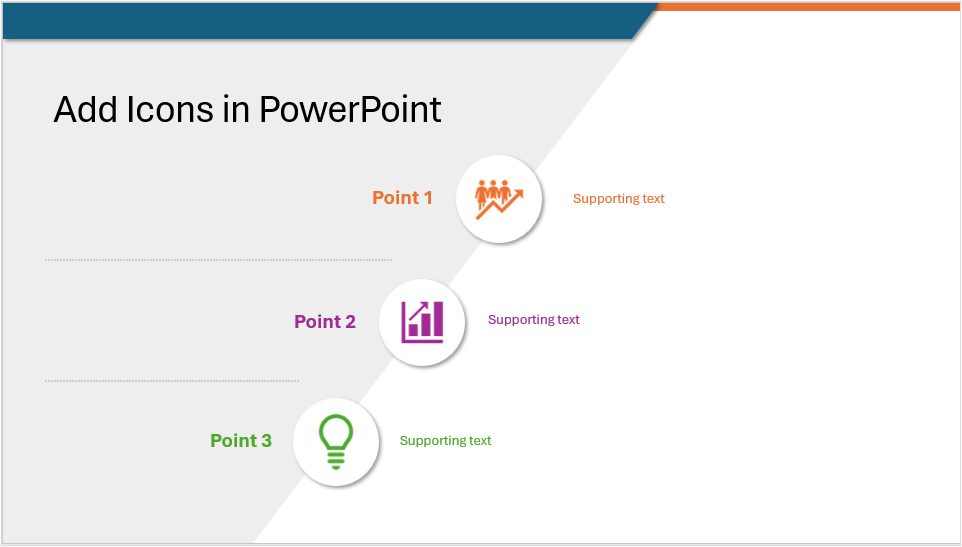
Make Presentations More Engaging Using PowerPoint's Built-in Icons
by Avantix Learning Team | Updated March 4, 2026
Applies to: Microsoft® PowerPoint® 2019, 2021, 2024 and 365 (Windows)
You can insert icons in PowerPoint using Microsoft's built-in Stock Images which are available in newer versions of PowerPoint. Built-in or native PowerPoint icons are inserted in SVG (scalable vector graphic) format. Icons add visual interest and can help to enhance messages. You can use icons to help visualize key points, focus attention and make your presentations more engaging and professional. In this article, we will review how to insert icons on PowerPoint slides and how to format icons.
Contents
- Tips for using icons
- Insert an icon on a PowerPoint slide
- Resize and move an icon
- Change icon color
- Add an effect to an icon
- Copy formatting from one icon to another
- Align icons
- Group icons and objects on a PowerPoint slide
- Final thoughts
Note: PowerPoint uses a fluent Ribbon so buttons and Ribbon tabs may display in a different way (with or without text) depending on the size of your screen, your PowerPoint version and your Control Panel settings. Screenshots in this article are from 365 but are similar in other versions of PowerPoint.
Recommended article: How to Curve Text in PowerPoint
Do you want to learn more about PowerPoint? Check out our virtual classroom or in-person classroom PowerPoint courses >
Tips for using icons
When using icons in PowerPoint, we recommend the following:
- Use icons with purpose. An icon should be appropriate for the point or concept.
- Combine icons with text to clearly convey your message.
- Don't use too many icons on a slide.
- Use consistent styles or formatting for your icons.
- Apply colors that are part of your color theme so that colors are consistent and if you change the theme, the icons will change automatically.
- Ensure that icons are aligned.
- If you want, add other effects by adding shapes around icons.
Insert an icon on a PowerPoint slide
Although you can insert icons in PowerPoint using icons from external third-party sites, built-in icons are available in PowerPoint in the Ribbon.
To insert an icon on a PowerPoint slide:
- In Normal View, display the slide in the presentation where you want to insert an icon.
- Click the Insert tab in the Ribbon.
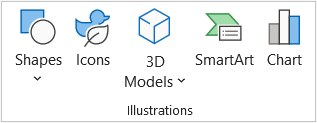
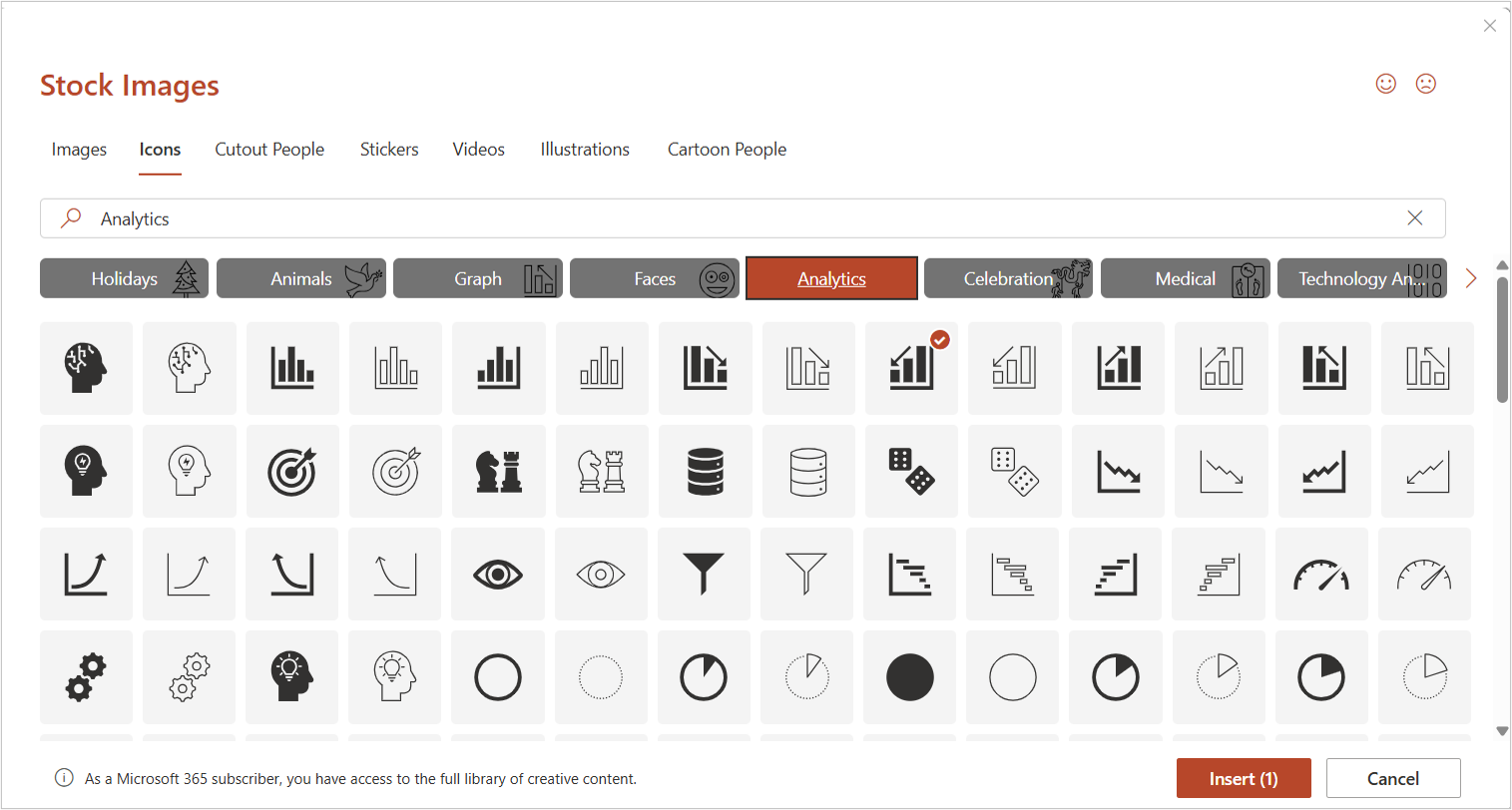
- Click Icons in the Illustrations group. This will open Stock Images with a gallery of icons.
- Scroll through the icons until you find the icon you want to use. You can also enter a term in the Search box to find icons of a specific type or click a category.
- Click the icon you want to use and click Insert. The icon will appear on the slide.
If you click multiple icons in the Icons gallery, you can insert multiple icons at one time when you click Insert.
The Icons command appears as follows on the Insert tab in the Ribbon:
When you click Icons in the Ribbon, the Icons gallery appears as follows:
Resize and move an icon
To resize and move an icon on a slide:
- In Normal View, click the icon on the slide to select it.
- Drag a corner handle to resize the icon. To resize proportionally, hold down Shift when you drag a handle.
- Point to the icon (but not a handle) and drag it to a new location.
Change icon color
To change the color of an icon on a slide:
- In Normal View, click the icon to select it. A Graphics Format tab appears in the Ribbon.
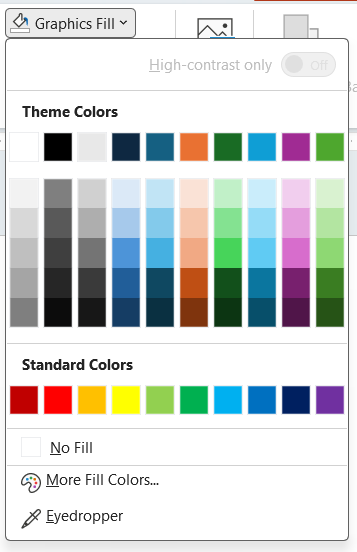
- Click Graphics Fill in the Graphics Styles group. A gallery appears.
- Click the color you want. Ideally, select a Theme Color to follow the theme in your presentation.
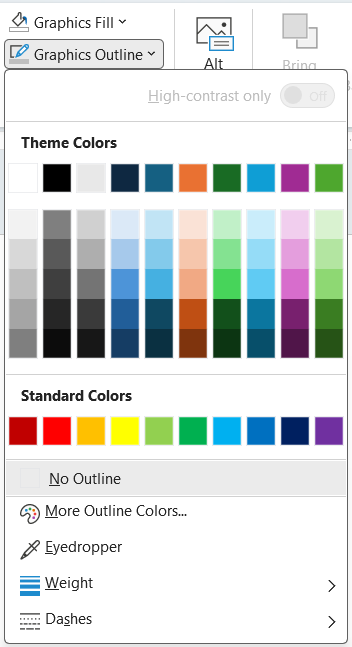
- Click Graphics Outline in the Graphics Styles group. A gallery appears.
- Click the color you want or select No Outline.
The Graphics Fill gallery appears as follows in the Graphics Format tab in the Ribbon when an icon is selected:
The Graphics Outline gallery appears as follows in the Graphics Format tab in the Ribbon when an icon is selected:
Add an effect to an icon
To add an effect to an icon on a slide:
- In Normal View, click the icon to select it. A Graphics Format tab appears in the Ribbon.
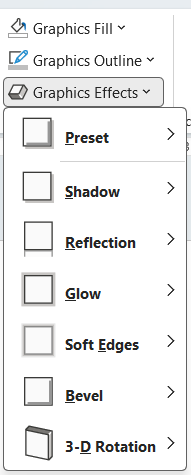
- Click Graphics Effect in the Graphics Styles group. A gallery appears.
- Select an effect. Effects include shadows, glows, reflections and so on. It's usually best to use the same effects with all of the icons on the slide.
The Graphics Effect gallery appears as follows in the Graphics Format tab in the Ribbon when an icon is selected:
Copy formatting from one icon to another
To maintain consistency, you may want to copy formatting from one icon to another.
To copy formatting (including color and effects):
- In Normal View, click the icon with the formatting you want to copy.
- Click the Home tab in the Ribbon.
- Click the Format Painter in the Clipboard group.
- Click the icon to which you want to copy the formatting.
Align icons
To align icons on a PowerPoint slide:
- In Normal View, shift-click the icons you want to align. A Graphics Format tab appears in the Ribbon.
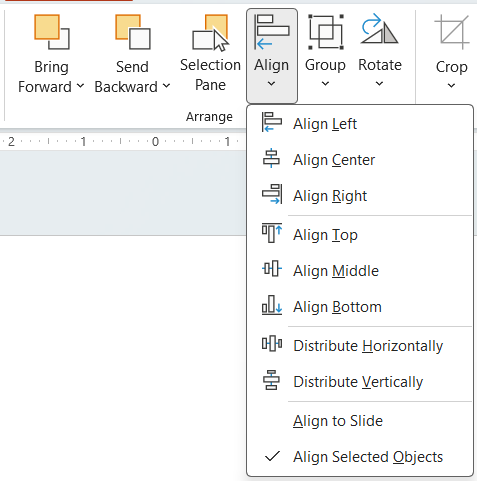
- Click Align in the Arrange group. A drop-down menu appears.
- Select the alignment type you want (such as Top).
The Alignment command appears as follows in the Graphics Format tab in the Ribbon when multiple icons are selected:
Group icons and objects on a PowerPoint slide
If you want, you can group icons or icons and other objects to keep them together.
To group icons or icons with other objects on a slide:
- In Normal View, Shift-click the icons and other objects you want to group.
- Right-click and select Group from the drop-down menu.
- If you want to ungroup grouped objects, right-click the grouped object and select Ungroup from the drop-down menu.
Final thoughts
Icons can help to make your presentations more engaging and professional. You can try adding shapes around icons for a different look and even combine icons with other objects such as charts.
Subscribe to get more articles like this one
Did you find this article helpful? If you would like to receive new articles, JOIN our email list.
More Resources
How to Embed a YouTube Video in PowerPoint
How to Link to Another Slide in PowerPoint (3 Ways)
How to Add Background Music to Play on All Slides in PowerPoint
How to Add Slide Numbers in PowerPoint Presentations (Step by Step)
How to Insert a Video in PowerPoint (from a File on Your PC or Shared Drive)
Related courses
Microsoft PowerPoint: Intermediate / Advanced
Microsoft PowerPoint: Design for Non-Designers
Microsoft PowerPoint: Animations Bootcamp
Microsoft Excel: Intermediate / Advanced
Our instructor-led courses are delivered in virtual classroom format or at our downtown Toronto location at 18 King Street East, Suite 1400, Toronto, Ontario, Canada (some in-person classroom courses may also be delivered at an alternate downtown Toronto location). Contact us at info@avantixlearning.ca if you'd like to arrange custom instructor-led virtual classroom or onsite training on a date that's convenient for you.
Copyright 2026 Avantix® Learning
You may also like
How to Insert SmartArt in PowerPoint (5 Ways)
SmartArt graphics are pre-defined graphics that are treated as one object and follow the document theme, font theme and color theme unless a user manually changes the font and font and shape colors. SmartArt graphics are also "smart" in several ways such as resizing other components if a new shape is added and changing font size. You can insert SmartArt in several ways in PowerPoint. SmartArt objects are typically inserted on PowerPoint slides in Normal View.

How to Highlight or Draw on PowerPoint Slides During a Slide Show
You can highlight text in PowerPoint in many different ways. If you have PowerPoint 2019 or a later version, Text Highlight Color is available on the Home tab in the Ribbon. For those with older versions without a Highlight command in the Ribbon, you'll need to use other strategies to highlight text. In this article, we'll review five ways to highlight text in PowerPoint. Most of these strategies will work in all versions.
How to Highlight Text in PowerPoint (5 Ways)
You can highlight text in PowerPoint in many different ways. If you have PowerPoint 2019 or a later version, Text Highlight Color is available on the Home tab in the Ribbon. For those with older versions without a Highlight command in the Ribbon, you'll need to use other strategies to highlight text. In this article, we'll review five ways to highlight text in PowerPoint. Most of these strategies will work in all versions.
Image credit(s) / application screenshot(s): Microsoft
Microsoft, the Microsoft logo, Microsoft Office and related Microsoft applications and logos are registered trademarks of Microsoft Corporation in Canada, US and other countries. All other trademarks are the property of the registered owners.
Avantix Learning |18 King Street East, Suite 1400, Toronto, Ontario, Canada M5C 1C4 | Contact us at info@avantixlearning.ca