
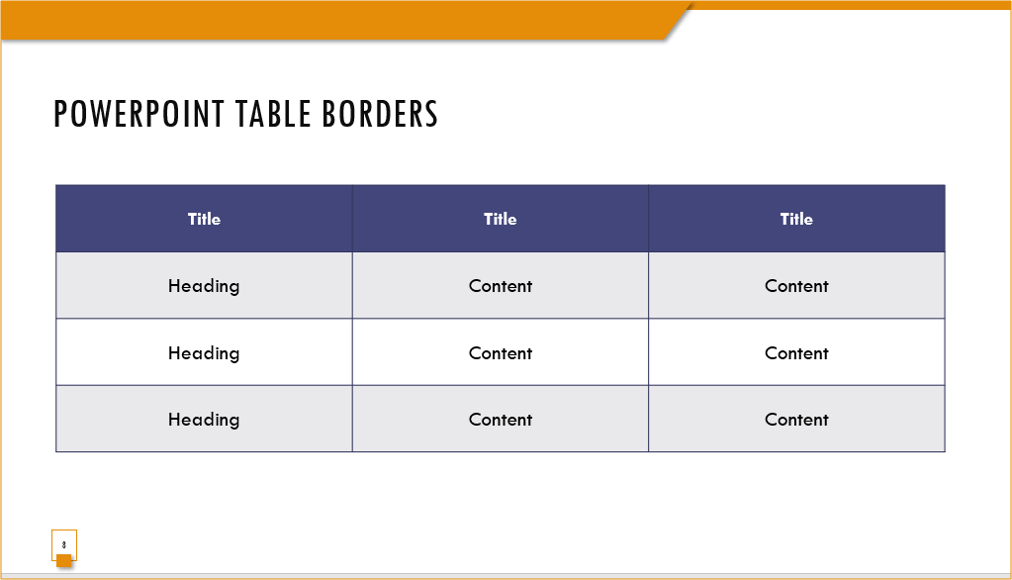
Change Table or Cell Border Color, Line Style and Thickness in PowerPoint
by Avantix Learning Team | Updated June 19, 2025
Applies to: Microsoft® PowerPoint® 2016, 2019, 2021 and 365 (Windows)
You can change the color of a table border or the borders of specific cells in PowerPoint. You can also change the border style and thickness (weight). Different borders can be applied to cells in the same table. For example, you could apply a thick line in a specific color to header cells and a thin line in a different color to the cells in the last row of a table. Borders can be applied to the top, bottom left or right side of a cell or cells. Tables are normally formatted first with table styles in PowerPoint and then you can apply custom borders to specific cells.
Unfortunately, you cannot customize table styles in PowerPoint in the same way as Microsoft Word.
Contents
- Change the color of a table or cell border
- Change the line style of a table or cell border
- Change the line thickness or weight of a table or cell border
- Tips for working with borders in tables
Recommended article: How to Match Colors in PowerPoint Using the Eyedropper
Do you want to learn more about PowerPoint? Check out our virtual classroom or in-person classroom PowerPoint courses >
Note: Some Ribbon tabs may appear with slightly different names if you are working on Office 365 and have a smaller screen or different display settings. For example, Table Tools Design may appear as Table Design. Buttons may also appear with or without text.
Change the color of a table or cell border
To change cell border line style, weight or color, you will need to select the cells you want to change, choose the desired line style, weight or color and then apply the border you want.
Borders appear in the Table Styles group on the Table Tools Design or Table Design tab in the PowerPoint Ribbon:

When you create a table and apply table styles, the available colors are based on the selected color theme in the presentation. If you want to apply a border color to selected cells, it's best to use theme colors so that if you change the theme, the table colors will also change. Overall themes and color themes appear on the Design tab in the Ribbon in Normal View.
To change the color of a table or cell border on a PowerPoint slide:
- Select the cells to which you want to apply a border.
- Click the Table Tools Design or Table Design tab in the Ribbon.
- In the Draw Borders group, click the Pen Color arrow. A drop-down menu appears.
- Click a color in the gallery. If you choose a Standard Color or More Colors, this will override the theme.
- Click the Borders arrow in the Table Styles group. A drop-down menu appears.
- Click the type of border you want in the menu (such as Bottom Border).
- Repeat for other borders (such as Top Border).
The Pen color drop-down menu appears as follows:

Change the line style of a table or cell border
To change the line style of a table or cell border:
- Select the cells to which you want to apply a border.
- Click the Table Tools Design or Table Design tab in the Ribbon.
- In the Draw Borders group, click the Pen Style arrow. A drop-down menu appears.
- Click a line style in the menu.
- Click the Borders arrow in the Table Styles group. A drop-down menu appears.
- Click the type of border you want in the menu (such as Bottom Border).
- Repeat for other borders (such as Top Border).
The Pen style (line style) drop-down menu appears as follows:

Change the line thickness or weight of a table or cell border
You can apply thin, medium or thick borders to table cells in PowerPoint. The thickness of a line or border is called weight and is measured in points.
To change the line thickness or weight of a table or cell border:
- Select the cells to which you want to apply a border.
- Click the Table Tools Design or Table Design tab in the Ribbon.
- In the Draw Borders group, click the Pen weight arrow. A drop-down menu appears.
- Select a line weight or thickness in the menu.
- Click the Borders arrow in the Table Styles group. A drop-down menu appears.
- Click the type of border you want in the menu (such as Bottom Border).
- Repeat for other borders (such as Top Border).
The Pen weight or thickness drop-down menu appears as follows:

Tips for working with borders in tables
You can select all three options (style, weight and color) first and then apply the borders for all settings at once.
If you choose All Borders in the Borders drop-down menu, borders will be applied to the top, bottom, left and right of the each cell in the selection.
If a pencil icon appears and you want to get rid of it, press Escape.
Subscribe to get more articles like this one
Did you find this article helpful? If you would like to receive new articles, JOIN our email list.
More resources
How to Highlight Text with Emphasis Animation
How to Compress Images in PowerPoint to Reduce File Size (10 Ways)
How to Add Animation in PowerPoint (Animate Images, Text and Other Objects)
How to Reorder Objects in PowerPoint Using Bring to Front or Send to Back (with Shortcuts)
How to Convert a PDF to Word in Microsoft Word (For Free Without Using Third Party Programs)
Related courses
Microsoft PowerPoint: Intermediate / Advanced
Microsoft PowerPoint: Design for Non-Designers
Microsoft PowerPoint: Animations Bootcamp
Our instructor-led courses are delivered in virtual classroom format or at our downtown Toronto location at 18 King Street East, Suite 1400, Toronto, Ontario, Canada (some in-person classroom courses may also be delivered at an alternate downtown Toronto location). Contact us at info@avantixlearning.ca if you'd like to arrange custom instructor-led virtual classroom or onsite training on a date that's convenient for you.
Copyright 2026 Avantix® Learning
You may also like
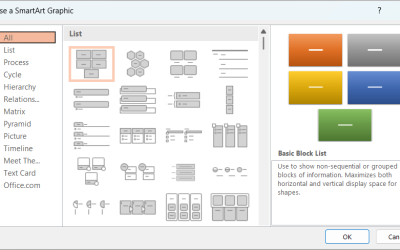
How to Insert SmartArt in PowerPoint (5 Ways)
SmartArt graphics are pre-defined graphics that are treated as one object and follow the document theme, font theme and color theme unless a user manually changes the font and font and shape colors. SmartArt graphics are also "smart" in several ways such as resizing other components if a new shape is added and changing font size. You can insert SmartArt in several ways in PowerPoint. SmartArt objects are typically inserted on PowerPoint slides in Normal View.
How to Print a Word Document Without Comments
If you or another user have added comments in a Word document, you may want to print the document without comments. By default, when you print a Word document, comments are printed as well. There are a few ways you can print a Word document without printing the comments – hide the comments or change print settings. If you use either of these strategies, the comments are not deleted.

How to Cut, Copy and Paste Text in Word (5 Ways with Shortcuts)
In this guide, we'll cover 5 ways to cut, copy and paste text in Microsoft Word. A common method is to use keyboard shortcuts but you can also use the Ribbon, the context menu and a few hidden tools as well. After you paste your text, you can choose paste options such as Keep Text Only.
Image credit(s) / application screenshot(s): Microsoft
Microsoft, the Microsoft logo, Microsoft Office and related Microsoft applications and logos are registered trademarks of Microsoft Corporation in Canada, US and other countries. All other trademarks are the property of the registered owners.
Avantix Learning |18 King Street East, Suite 1400, Toronto, Ontario, Canada M5C 1C4 | Contact us at info@avantixlearning.ca


