
Microsoft Office Articles | Avantix Learning

How to Highlight Records or Values in a Microsoft Access Report Using Conditional Formatting
You can highlight values in fields or records in Microsoft Access reports using conditional formatting. Certain conditions must be met in order for the formatting to be applied …
How to Insert a Line in Word (3+ Ways)
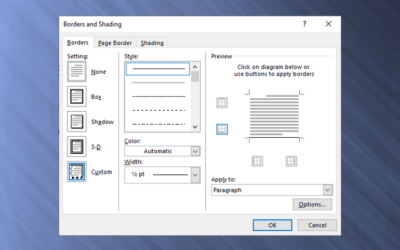
You can insert a line in Word using the Ribbon or by using keyboard shortcuts. It's best to avoid drawing lines and instead use border lines in Microsoft Word (normally paragraph borders) so the line or lines will move as you edit the document.

Show or Hide Formulas in Microsoft Excel (3+ Easy Ways)
You can easily show or hide formulas in a number of ways in Microsoft Excel. You can use a keyboard shortcut, click a button and even use a formula to show formulas …

How to Keep a Microsoft Word Table Together on One Page
There are a few ways to keep a Microsoft Word row or table together on one page. The method you use depends on several factors including the size of the table …

How to Extract All Images from a PowerPoint Deck (or Just One or Two)
If you want to extract all images (or even just one or two) from a Microsoft PowerPoint deck to use in another presentation, there are a couple of ways to extract images …

How to Summarize Multiple Excel Worksheets with 3D Reference Formulas
You can use 3D references in Excel formulas to summarize multiple worksheets that are structured in the same way. A 3D reference refers to the same cell or range of cells on multiple worksheets.

How to Hyperlink in Word (Insert, Edit or Remove Links)
You can insert hyperlinks in Microsoft Word documents to make it easy for users to click a link to jump to another location. It's also simple to edit and remove hyperlinks …
How to Create a Calculated Field in a Microsoft Access Query
You can create calculated fields in select queries in Microsoft Access in the QBE (Query by Example) grid. You'll need to learn a few syntax rules and then you can create simple to more complex calculations.
How to Print a PowerPoint Presentation with Notes
You can print PowerPoint presentations with notes with or without slide thumbnails. You can control the way notes or speaker notes are printed in three ways – by editing the Notes Master which affects all slides, by editing single notes pages in Notes Page view or by changing formatting in the Notes pane in Normal View.

How to Change the Measurement System Units in Microsoft Word (from Inches to Cm and Vice Versa)
You can easily change the measurement system units in Microsoft Word for all of your documents. If you'd prefer to work in inches rather than cm (centimeters) or vice versa, simply change the measurement system in Word's Options. You can choose inches, centimeters, millimeters, points or picas. Changes in the measurement system will affect Word's Ruler as well as various dialog boxes (including the Paragraph dialog where you can change paragraph indents).

How to Add Speaker Notes in PowerPoint
You can add speaker notes in your PowerPoint decks using the Notes pane in Normal View. Speaker notes may be viewed by a presenter during a slide show and may be printed as well. When you create your PowerPoint slides, you can add, edit and format notes. If you'd like to view notes during your presentation, you'll need to keep them short because there is a limited amount of space to view them in Presenter View. You can also format notes and they can be distributed as a standalone document as an alternative to traditional PowerPoint handouts.
10 Microsoft Word Tips, Tricks and Shortcuts for Selecting in Tables
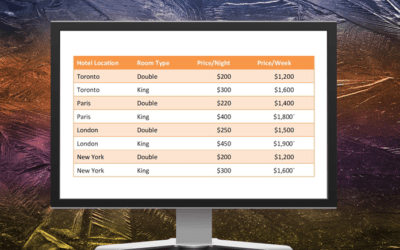
Check out these Word tips, tricks and shortcuts to select an entire table, a single cell, an entire row or column or even multiple rows or columns in tables.

How to Enter Data in an Excel Filtered List into Visible Cells (2 Ways)
It's a common issue for Microsoft Excel users to attempt to use AutoFill to fill data in a filtered list and it doesn't work as expected. The fill data is entered into all cells, including the hidden or invisible cells. The solution is to enter data into visible cells only …

10 Excel Tips for Working with the Subtotal Feature
You can insert subtotals in Microsoft Excel data sets or lists using the Subtotal feature. Check out these 10 great tips which include showing and hiding subtotals, formatting subtotals, copying only subtotals and grand totals and more …

How to Turn Off Snap to Grid in PowerPoint (3 Ways)
In PowerPoint, you can temporarily turn off or disable the snap to grid behaviour or turn off snap to grid permanently. Check out these 3 easy ways to control snap to grid.

How to Add or Remove Page Breaks in Microsoft Word
You can add or remove page breaks in Microsoft Word in a number of ways. You can delete manual page breaks by selecting them and deleting them …

10 Timesaving Excel Tricks and Shortcuts for Copying and Pasting
It's surprising how much time you can save with a few tricks and shortcuts for copying and pasting in Microsoft Excel. Here are 10 useful copy paste shortcuts for Excel users …

How to Make a Picture Transparent in PowerPoint (3 Ways)
You can make a picture transparent in PowerPoint in 3 ways. In newer versions of PowerPoint, you can use the Transparency command in the Ribbon or the Format Picture task pane to apply transparency. In older versions, you'll need to fill a shape with a picture and then make the shape transparent.
PowerPoint Trick to Cut, Copy and Store Objects in a Temporary Library
There's a hidden tool in PowerPoint that is extremely useful for copying and storing images, shapes or other objects much like a temporary library …

3 Easy Shortcuts to Copy Formatting in PowerPoint
Check out these three easy ways to copy shape, picture or text formatting quickly and easily in PowerPoint using buttons or keyboard shortcuts.

Create Dynamic Microsoft Word Documents Using Fields (Insert, Format and Update Fields)
You can create dynamic components in your Microsoft Word documents by inserting and updating fields. Update your fields and the document updates automatically!

10 More Excel Pivot Table Shortcuts
Since pivot tables are one of the most powerful tools in Microsoft Excel for summarizing data, we've compiled a list of 10 more keyboard shortcuts for pivot table users.
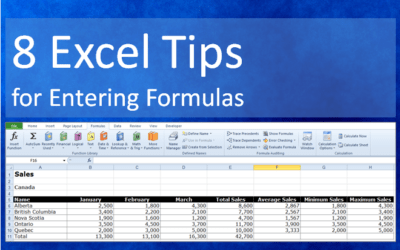
8 Excel Tips for Entering Formulas
Check out these 8 Excel tips and tricks for entering formulas. You'll save a lot of time and even help reduce errors in your formulas.

Microsoft Word Trick for Supercharged Cut, Copy and Paste (The Spike)
If you do a lot of cutting, copying and pasting in Microsoft Word, there's a hidden tool that can save you a lot of time. The technical name for this tool is the Spike which is likely why very few Word users know about it. The Spike is different from the regular Clipboard which holds only one cut or copied item at a time. The Spike or enhanced Clipboard can collect multiple items (text or images) as you cut or copy them. You can collect (cut or copy) a number of items and then paste them in the same document or a different document in a couple of steps. The trick is to display the Clipboard task pane when you're cutting or copying.
To request this page in an alternate format, email our staff at info@avantixlearning.ca
Microsoft, the Microsoft logo, Microsoft Office and related Microsoft applications and logos are registered trademarks of Microsoft Corporation in Canada, US and other countries. All other trademarks are the property of the registered owners.
Avantix Learning | 1 Yonge Street, Suite 1801 (Toronto Star Building), Toronto, Ontario, Canada M5E 1W7 | info@avantixlearning.ca