
Microsoft Office Articles | Avantix Learning

How to Change Slide Background in PowerPoint
In PowerPoint, you can change the background of individual slides, selected slides based on a layout, or all slides based on a slide master. Slide backgrounds can be changed to a color, pattern, gradient, texture or picture. In this article, we'll review applying color, gradient and picture backgrounds.

How to Extract All Pictures from a Microsoft Word Document (or Just One or Two)
In Microsoft Word, images can be extracted one by one or you can extract all images by converting a Word document to a zip file or saving it as a web page. Extracting all images is helpful if you'd like to find pictures that are inflated in size.

How to Hyperlink in PowerPoint (Insert, Remove or Edit Links)
You can easily add links or hyperlinks in PowerPoint presentations to add interactivity and make it easy for users to click a button or link to jump to another slide in your deck, to another presentation, to an Excel file or to a web site.

How to Remove Blanks in a Pivot Table in Excel (6 Ways)
To remove blanks in pivot tables, you can set pivot table options to display data in empty cells, filter to remove blanks, apply conditional formatting, find and replace blanks or change pivot table design settings …

How to Crop a Picture in PowerPoint (4 Ways)
In PowerPoint, you can crop a picture in several different ways. You can apply basic cropping, crop to a shape such as an oval or triangle, crop to aspect ratio or crop to a precise size. After you have applied cropping, you can change the cropped area, adjust the position of the picture and / or resize the picture.

How to Update Fields in Microsoft Word (One or All Fields)
You can update Microsoft Word fields manually or automatically. For fields you update manually, you can update just one field or update all the fields in your document at once.

How to Create a Table of Contents in Word
You can create a table of contents quickly in Word using built-in heading styles. Although you can insert a table of contents (TOC) using different strategies in Word documents, it's easiest to use Heading 1, Heading 2 and so on to format headings and then generate your table of contents. You can then change the formatting and update the TOC when your document changes.

How to Insert Nonbreaking Spaces and Nonbreaking Dashes in PowerPoint
You can insert nonbreaking spaces and nonbreaking dashes or hyphens in PowerPoint to keep characters together on one line …
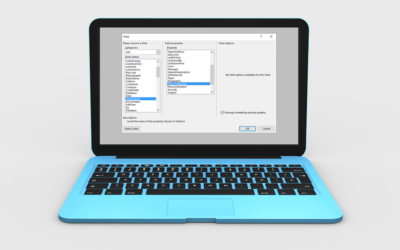
How to Insert Fields in Microsoft Word (Built-in or Custom)
You can insert built-in or custom fields in Word documents to display variable content that will change when you update the fields. If you want to insert custom fields, you will need to create custom document properties …
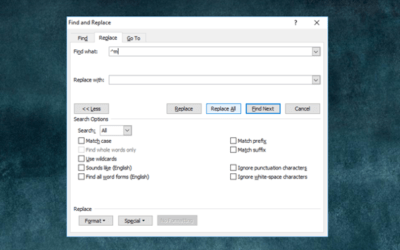
How to Quickly Remove All Page Breaks in Word
You can quickly remove all page breaks in a Microsoft Word file using Find and Replace. The following method will delete all manual page breaks created using the Breaks command or by pressing Ctrl + Enter …

How to Blur an Image in PowerPoint
You can achieve some interesting effects in your PowerPoint presentations by applying a blur effect to a picture. Blur is an artistic effect and you can increase the blur using the Format Picture task pane or dialog box …

How to Add Page Numbers in Word
You can add page numbers in Word documents at the top or bottom of pages in headers or footers. Numbers in headers and footers should be inserted as fields so that they will automatically update as the document is edited. In this article, we'll review numbering in simple and more complex Word documents.

How to Crop an Image into a Circle in PowerPoint Using Merge Shapes
Starting in Microsoft PowerPoint 2013, you can use the Merge Shapes tool to crop an image into a circle. You can use Intersect in Merge Shapes to cut out a circle (or other shape) from a picture. If you have a version of PowerPoint prior to 2013, you'll need to use a different method (such as crop to shape) to cut a circle out of a picture.

7 Timesaving Microsoft Excel Shortcuts for Selecting in Tables
There are many different shortcuts for selecting elements in Microsoft Excel tables. You can use shortcuts to select an entire table, an entire row, an entire column or ranges in tables.

4 Strikethrough Shortcuts in Microsoft Word to Cross Out Text
You can apply strikethrough to text in Word to create a line through text. Although you can cross out text using Strikethrough on the Home tab in the Ribbon or the Font dialog box, you can also write your own Strikethrough keyboard shortcut in Microsoft Word.

How to Get Slide Design Ideas Using PowerPoint Designer
If you are a Microsoft 365 subscriber, you can use PowerPoint Designer to get design ideas for slides. Designer takes advantage of Microsoft's Intelligent Services for suggesting layouts for images. It can also help with the design for slides containing other types of content.

How to Increase or Decrease Decimal Places in Microsoft Excel Using Keyboard Shortcuts
You can use keyboard shortcuts to increase or decrease decimal places. Press Alt to access the Ribbon …

How to Highlight Records or Values in a Microsoft Access Report Using Conditional Formatting
You can highlight values in fields or records in Microsoft Access reports using conditional formatting. Certain conditions must be met in order for the formatting to be applied …
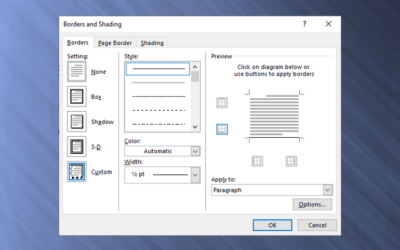
How to Insert a Line in Word (3+ Ways)
You can insert a line in Word using the Ribbon or by using keyboard shortcuts. It's best to avoid drawing lines and instead use border lines in Microsoft Word (normally paragraph borders) so the line or lines will move as you edit the document.

Show or Hide Formulas in Microsoft Excel (3+ Easy Ways)
You can easily show or hide formulas in a number of ways in Microsoft Excel. You can use a keyboard shortcut, click a button and even use a formula to show formulas …

How to Keep a Microsoft Word Table Together on One Page
There are a few ways to keep a Microsoft Word row or table together on one page. The method you use depends on several factors including the size of the table …

How to Extract All Images from a PowerPoint Deck (or Just One or Two)
If you want to extract all images (or even just one or two) from a Microsoft PowerPoint deck to use in another presentation, there are a couple of ways to extract images …

How to Summarize Multiple Excel Worksheets with 3D Reference Formulas
You can use 3D references in Excel formulas to summarize multiple worksheets that are structured in the same way. A 3D reference refers to the same cell or range of cells on multiple worksheets.

How to Hyperlink in Word (Insert, Edit or Remove Links)
You can insert hyperlinks in Microsoft Word documents to make it easy for users to click a link to jump to another location. It's also simple to edit and remove hyperlinks …
To request this page in an alternate format, email our staff at info@avantixlearning.ca
Microsoft, the Microsoft logo, Microsoft Office and related Microsoft applications and logos are registered trademarks of Microsoft Corporation in Canada, US and other countries. All other trademarks are the property of the registered owners.
Avantix Learning | 1 Yonge Street, Suite 1801 (Toronto Star Building), Toronto, Ontario, Canada M5E 1W7 | info@avantixlearning.ca