
Microsoft Office Articles | Avantix Learning

How to Insert or Type the Delta Symbol in Word (6 Ways to Insert Δ or δ)
You can insert or type the Delta symbol in Word documents using built-in commands or keyboard shortcuts. The Delta symbol is the fourth letter of the Greek alphabet and corresponds to the letter D. Delta can be entered in uppercase (Δ) or lowercase (δ).

3 Excel Strikethrough Shortcuts to Cross Out Text or Values in Cells
You can apply strikethrough to text or values in Excel to cross out or create a line through a cell or part of a cell. There are 3 common ways to apply strikethrough in your Excel worksheets – using a built-in keyboard shortcut, using the Font dialog box, or by adding a command to the Quick Access Toolbar.

How to Stop Design Ideas in PowerPoint (Disable PowerPoint Designer)
PowerPoint Designer displays a Design Ideas task pane by default in PowerPoint 365 if Intelligent Services has been enabled. However, if you want to turn off the Design Ideas task pane, there are a few ways to disable the Designer feature depending on your needs.

PowerPoint Alignment Keyboard Shortcuts (10+ Shortcuts to Align Text or Objects)
If you want to align text or objects in PowerPoint, you may want to use keyboard shortcuts for alignment. Although there are built-in keyboard shortcuts to align text in placeholders or text boxes, you will need to do some customizing to create simple keyboard shortcuts to align objects.

How to Lock the Position of a Slicer in Excel
Slicers are a great tool in Excel to filter tables or pivot tables. You can lock the position of a slicer in an Excel worksheet using a options in the Format Slicer task pane. You'll need to select the slicer or slicers and Disable resizing and moving in the task pane (and choose other options based on your preferences).

7 Microsoft Project Navigation and Selection Shortcuts in Task Lists
If you are working in Gantt Chart view, you can use these keyboard shortcuts to quickly move and select in your task list.

How to Use Morph in PowerPoint to Design Engaging Presentations
If you have PowerPoint 2019 or a later version, you can use the amazing Morph transition to morph one object into another (or multiple objects into other objects). Although you can apply Morph to create movement, you can also use other tricks like changing the size or formatting of text, shapes, pictures, SmartArt, WordArt and charts. Because it's a transition, not an animation, you'll need to create two slides to use Morph.
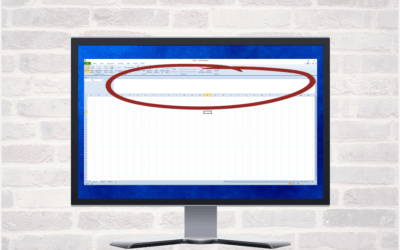
How to Expand the Formula Bar in Excel (2 Ways)
In Microsoft Excel, when you enter data or a formula, it appears in the Formula Bar. If you are writing longer formulas, it can be helpful to expand the Formula Bar.

How to Move an Object Across a PowerPoint Slide During a Slide Show
You can make a shape, image or other object move across a PowerPoint slide using entrance or motion path animations. The animation will occur during a slide show and can occur automatically or on click.

Why You Can't Group in PowerPoint (3 Common Issues)
It's common to group objects in PowerPoint so you can move the objects together and apply formatting and animation to the group. However, you can't group certain objects. In this article, we'll discuss several situations where you can't group in PowerPoint as well as some solutions.

How to Insert or Type the Alpha Symbol in Word (6 Ways to Insert α)
You can insert or type the Alpha (α or Α) symbol in Word documents in several ways. The Greek Alpha symbol can be entered as a capital or lower case using built-in commands or keyboard shortcuts.

How to Insert a Nonbreaking Space in Word
You can keep text together in several ways in Word. If you want to keep words or characters together, you can use nonbreaking spaces or nonbreaking hyphens or dashes and insert them using a dialog box or a keyboard shortcut. If you want to keep lines or paragraphs together on the same page, you can apply settings in the Paragraph dialog box (which can be built into styles if you use styles).

How to Create Headings in Word Using Heading Styles
You can create headings in Microsoft Word documents by applying Word's built-in heading styles (such as Heading 1 or Heading 2). After you have applied styles, you can modify them and change the font, size, color, and other formatting attributes so the entire document will update. Once you have applied heading styles, you'll be able to navigate to the headings using the Navigation Pane and create a table of contents.
How to Update All Figure Numbers in Microsoft Word
If you have inserted figure numbers for images or drawings in a Microsoft Word document, you can update them throughout the document and the figures will renumber automatically. This is helpful if you have moved or inserted new images. In order to renumber figures, the figure titles and numbers must be inserted as captions (using the References tab in the Ribbon). Since captions are fields, they can be updated in a couple of steps.

How to Insert Formulas and Functions in Word Tables
You can insert formulas in Word tables to perform basic calculations. These formulas can include functions such as SUM or AVERAGE or basic operators. When you insert formulas in Word tables, you are really inserting fields so the fields will need to be updated if the data in the table changes. For more complex calculations, it's usually best to create formulas in Excel where they will update automatically.

How to Change the Thumbnail for a Video in PowerPoint (using the Poster Frame Tool)
If you have inserted a video on a PowerPoint slide, you can display a custom thumbnail (or Poster Frame) for the video during a slide show. The thumbnail will display when you run a PowerPoint slide show and disappears when you start the video. For most videos, the thumbnail that displays is the first frame of the video clip. You can use the Poster Frame command to display a different frame in the video clip or a picture from another source as a thumbnail. A picture thumbnail could be either an image or an icon.

How to Use the Built-in Laser Pointer in PowerPoint (with Shortcuts)
During a PowerPoint slide show, you can change your mouse into a laser pointer to focus attention on a specific area on your slide. You can show or hide the built-in laser pointer using keyboard shortcuts or by using the context menu.

How to Add Audio in PowerPoint Presentations
You can add audio in PowerPoint from a file on your PC or from a shared drive. Audio is played during a slide show and you can insert music, sound clips, or voice recordings. Since audio files are copied into PowerPoint presentations by default, they can increase file size and may need to be compressed. To play audio, your computer must be equipped with a sound card and speakers.

PowerPoint Shortcuts for Copy, Paste and Paste Special
Check out these three easy ways to copy shape, picture or text formatting quickly and easily in PowerPoint using buttons or keyboard shortcuts.

How to Insert the Does Not Equal Sign in Word (6 Ways to Type or Insert ≠)
You can insert the does not equal sign (≠) or not equal to sign in a Word document using Insert Symbol, a keyboard shortcut, an AutoCorrect entry or an Alt shortcut. In mathematics, the not equal to sign is used to indicate that two values or expressions are not equal to each other. This symbol is the opposite to the equal sign or symbol (=) which is used to show that two values or expressions are equal.

How to Show Table Gridlines in Microsoft Word
If you work with tables in Microsoft Word, it's a good idea to show gridlines. Table gridlines don't print but borders do print. If borders are removed from a table, users may not recognize the table if gridlines are not displayed.

How to Search for Text in Word
You can search for text in Word documents using the Navigation Pane or the Find and Replace dialog box. There are several advanced options for searching for text including using wildcards and matching upper and lower case.

How to Turn Off Automatic Bullets and Numbering in Word
You can stop automatic bullets or numbering in Word by changing AutoFormat As You Type Options in AutoCorrect settings. Automatic bullets and numbering are turned on by default but you can turn these options off or on when needed.

How to Insert a Check Mark or Tick Mark in Word (8 Ways with Shortcuts)
You can insert or type a check mark or tick mark symbol (✓) in a Word document in several ways. Check marks can be inserted using built-in commands or keyboard shortcuts. In this article, we'll review 8 ways to insert a check mark in Word. In this article, we'll review 8 ways to insert a check mark or tick mark symbol in Word.
To request this page in an alternate format, email our staff at info@avantixlearning.ca
Microsoft, the Microsoft logo, Microsoft Office and related Microsoft applications and logos are registered trademarks of Microsoft Corporation in Canada, US and other countries. All other trademarks are the property of the registered owners.
Avantix Learning | 1 Yonge Street, Suite 1801 (Toronto Star Building), Toronto, Ontario, Canada M5E 1W7 | info@avantixlearning.ca