
Microsoft Office Articles | Avantix Learning
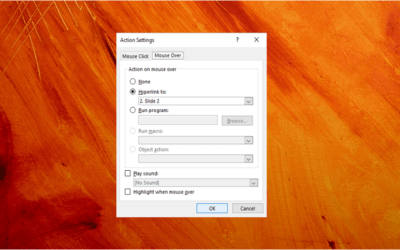
How to Create a Mouse Over or Hover Over Pop-up Effect in PowerPoint
You can create a pop-up effect in PowerPoint when you hover over or mouse over text, pictures or other objects. When you hover over an object during a slide show, you can have PowerPoint jump to another slide to make it appear that an object is a pop-up.

How to Turn Off Autofit in PowerPoint to Stop Automatic Formatting
You can turn off Autofit to stop PowerPoint from changing font size automatically in placeholders, text boxes and shapes containing text. Depending on your preferences, you can turn Autofit off for objects in the current presentation or in all new presentations.

How to Remove Comments in Word (4 Ways to Delete Comments)
You can remove comments in Word by right-clicking, using the Review tab in the Ribbon or using the Inspector. The problem with comments is that they may be hidden if markup is not displayed. It's a good idea to display markup and then remove comments.
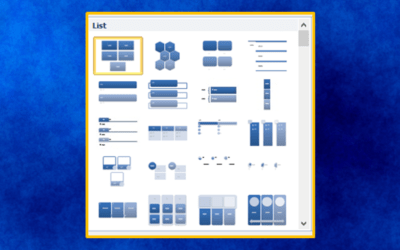
20 PowerPoint Tips and Shortcuts to Work Faster with SmartArt
If you're inserting and formatting SmartArt in PowerPoint, there are several tips and shortcuts you can use to work faster with SmartArt objects.

How to Use the Selection Pane in PowerPoint to Select, Reorder, Rename and Hide Objects
One of PowerPoint's most useful tools is the Selection Pane. You can use it when you're working with multiple images and objects that are stacked on top of each other on a slide. With the Selection Pane, you can select, reorder, rename, show and hide objects on a PowerPoint slide.
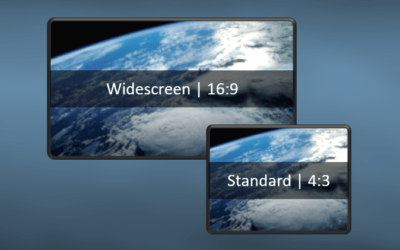
How to Change Slide Size or Dimensions in PowerPoint
You can change the slide size or aspect ratio of a PowerPoint presentation in all versions. The default slide size or dimensions is widescreen (16:9 aspect ratio). You can also enter a custom slide size if you prefer (including entering slide size in pixels). The best time to set slide size is when you first set up your PowerPoint presentation before you add any content. If you change the size later in the process, you may have to deal with distorted pictures and you may also need to adjust the position and size of various objects on slides in Normal View and in the slide master(s) and layouts in Slide Master View.

How to Insert Pictures in PowerPoint 365 (from a Drive, Stock Images or Online Pictures)
If you are a PowerPoint 365 (Microsoft 365) subscriber, you should now have options to insert stock images, online pictures and pictures from a device in the Insert Pictures drop-down menu …

Where to Find Free Pictures for Your PowerPoint Presentations (10 Great Stock Image Sites)
You can find beautiful free pictures that you can use in your PowerPoint presentations online. There are plenty of great stock photo sites that offer high-quality images at no charge. Images can make a big difference for audience engagement and can help your presentations look more professional. You can search for images on these sites by keyword and download images at different resolutions. Most of them allow personal and commercial use of images based on their license terms.
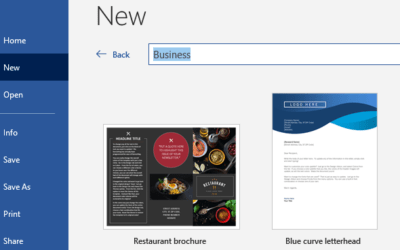
How to Create Templates in Microsoft Word
You can create, save, use and edit templates in Microsoft Word for frequently-used documents such as letters, reports, proposals and manuals. Templates include basic character, paragraph and page formatting and may include text, custom styles, tables, images, macros, sections, headers and footers.

14 Microsoft Word Shortcuts to Quickly Select Text (Words, Lines and Paragraphs)
In Microsoft Word, you can save lots of time if you can quickly select characters, words, lines, paragraphs and blocks of text in your documents. You can use keyboard shortcuts or mouse shortcuts to select text.

10+ Great Microsoft Word Navigation Shortcuts to Move Around Quickly in Your Documents
In Microsoft Word, you can save lots of time if you can move around quickly in your documents. You can use keyboard shortcuts to jump to the beginning or end of your document and move up or down by page or paragraph.

How to Group or Ungroup Objects in PowerPoint (with Shortcuts)
You can group and ungroup objects in PowerPoint using the Ribbon, keyboard shortcuts or the context menu. If you group pictures, shapes or other objects, you can format, move, resize and animate those objects as one object. You can also ungroup objects that have been grouped and regroup objects.

How to Fade a Picture In and Out in PowerPoint
You can fade a picture in and out on a PowerPoint slide during a slide show using animations. Both fade entrance and exit animation effects will need to be applied to the picture and the animations can be set to start automatically or on click.

How to Change Picture Brightness or Contrast in PowerPoint
In PowerPoint, you can change the brightness or contrast of a picture using picture correction tools in the Ribbon or in the Format Picture task pane.

15 PowerPoint Shortcuts to Select Text
Check out this list of 15 shortcuts you can use in PowerPoint to select text in shapes, text boxes, placeholders and in the Outline Pane.

Troubleshoot Slide Numbers in PowerPoint Decks
If you've inserted slide numbers in slide layout placeholders in PowerPoint and the slide numbers are still not working, there are a few reasons that they may not appear.

10 Excel Flash Fill Examples (Extract, Combine, Clean and Format Data with Flash Fill)
Flash Fill is a great tool that you can use to quickly clean or format data in your Excel workbooks. It can automatically extract, combine, clean and format data without using a formula. It does seem like magic. Here are 10 examples using Flash Fill in Excel.

How to Add Slide Numbers in PowerPoint Presentations (Step-by-Step)
You can add slide numbers in PowerPoint to some or all of your slides using slide layouts. If your slide layouts contain slide number placeholders, you can then apply those layouts to your slides and insert slide numbers in the placeholders.

How to Change the Number Format of a Number Field in a Word Mail Merge
You can change or fix the format of a number field in a Microsoft Word mail merge document using switches in field codes. Number formatting issues tend to occur when the source document for the mail merge is an Excel workbook or Access database.

How to Create and Print Labels in Word Using Mail Merge and Excel Source Data
You can create labels in Microsoft Word by running a mail merge. This is typically used to generate and print bulk mailing labels for names and addresses of clients or other contacts. You'll need to create a main document for the labels in Word and then connect to a data set or list in an Excel worksheet.
10 Ways to Compress PowerPoint Presentations to Reduce File Size
You can compress or reduce the size of large PowerPoint presentations in several ways. The most common strategy to reduce the size of a PowerPoint presentation is to compress pictures, video and audio. However, you can also use other methods to make large files smaller including saving media and PowerPoint files in other formats and converting or removing embedded objects.

How to Compress Video and Audio Media in PowerPoint to Reduce File Size
You can compress video (and / or audio) media in a PowerPoint presentation to reduce file size. Since video and audio that is inserted into a PowerPoint file is embedded by default, video and audio media can increase file size significantly.

How to Change the Date Format of a Date Field in a Word Mail Merge
You can change the format of a date field in a Microsoft Word mail merge document using switches in field codes. Date fields can be formatted using switches. A date switch is a field code that changes the format of a date field.

How to Replace Blank Cells in Excel with Zeros (0), Dashes (-) or Other Values
You can quickly fill or replace blank cells in Excel with zeros, dashes or other number or text values (0, -, N/A, Null or other text). It's useful to fill blank cells with a number, symbol or value if you want to use the data set as the source for a pivot table or use other data analysis tools.
To request this page in an alternate format, email our staff at info@avantixlearning.ca
Microsoft, the Microsoft logo, Microsoft Office and related Microsoft applications and logos are registered trademarks of Microsoft Corporation in Canada, US and other countries. All other trademarks are the property of the registered owners.
Avantix Learning | 1 Yonge Street, Suite 1801 (Toronto Star Building), Toronto, Ontario, Canada M5E 1W7 | info@avantixlearning.ca