
Microsoft Office Articles | Avantix Learning

Automatically Sum Rows and Columns in Excel Using the Awesome Quick Analysis Tool
You can sum or calculate other totals automatically in Excel using the Quick Analysis Tool. This awesome tool calculates totals for Sum, Average, Count, % Total and Running Total. All you need to do is decide if you want totals generated below or to the right of the selected range. You can even see a live preview of the totals before inserting them. In addition to calculating totals, you can also use the Quick Analysis tool to apply conditional formatting or to create charts and tables.

PowerPoint Slide Show Shortcuts (50+ Keyboard Shortcuts)
You can use PowerPoint keyboard shortcuts when you are running a slide show to quickly move around in your PowerPoint presentation. Using your keyboard, you can move from slide to slide, jump to a specific slide or even change the screen to black or white.

How to Highlight or Draw on PowerPoint Slides During a Slide Show
You can access PowerPoint's ink annotation tools including a pen and a highlighter during a slide show to focus attention or write on slides. These tools have been around for a while and you can use them in previous versions of PowerPoint.
How to Watch Cells for Real Time Updates in Microsoft Excel
Keep an Eye on Important Changes using Excel's Watch Window by Avantix Learning Team | Updated October 1, 2021 Applies to: Microsoft® Excel® 2010, 2013, 2016, 2019 and 365 (Windows) The Watch Window is an awesome tool that you can use in Excel to view changes to cells...
3 Simple Ways to Copy or Import Excel Data into Word (Linked or Unlinked)
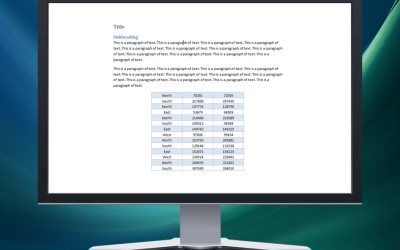
You can easily copy or import Excel worksheet data into Word documents. When you import from an Excel file, you can choose to import linked or unlinked data. If it's linked, you will be able to update, change and remove the links.

How to Highlight Errors, Blanks and Duplicates in Microsoft Excel (Using Formulas)
You can highlight errors, blanks and duplicates in Microsoft Excel easily using conditional formatting. Conditional formatting is a great tool in Excel and if you combine it with formulas, you can do some amazing things.

10 Timesaving Microsoft Project Shortcuts in Gantt Chart View
Check out these great shortcuts to save time in the Gantt Chart view.

How to Reduce the Size of a Microsoft Word Document (10 Ways to Compress a Large Word File)
You can reduce the size of a Microsoft Word document in several ways. The most common strategy to reduce Word file size is to compress pictures. However, you can also use other methods to deal with large documents such as saving media and Word files in other formats and limiting the use of specific features.

How to Convert a Microsoft Access Report to PDF (3 Ways)
You can easily convert your Access reports to PDF (Portable Document Format) without using Adobe Acrobat Pro. To convert to PDF, you use the File tab or the External Data tab in the Ribbon or you can customize the Quick Access Toolbar.

How to Quickly Remove All Animations from PowerPoint Presentations
You can quickly remove or delete PowerPoint animations on an individual slide or turn off all animations for an entire presentation. This can be particularly helpful for specific audiences. In this article, we'll use two methods to remove animations. The first method permanently removes animations on a slide and the second simply disables animations during a presentation. Animations can be enabled again later

How to Use the N Function to Insert Notes in a Formula in Excel
In addition to adding comments in Excel, there is a relatively obscure function called the N function that you can use to enter notes directly within a formula. The N function converts a value to a number and has been around for a long while so you can use it in older versions of Excel as well.

Inserting, Editing, Deleting, Showing and Hiding Comments in Excel
You can insert, edit, delete, show and hide comments or notes in Microsoft Excel using Excel's comments feature. Notes can also be entered directly in a formula. Notes or comments are hidden by default unless you click on a cell. You can quickly delete all comments using the Inspector.

How to Insert Screenshots in PowerPoint and Word (Part 2: Windows Snipping Tool)
You can capture screenshots using the Snipping Tool and insert them into Microsoft Word, PowerPoint, Excel and other programs. The Snipping Tool is a free utility program or accessory in Windows and has already been installed with Windows. So where is this tool?

How to Insert Screenshots in PowerPoint and Word (Part 1: Office Tools)
In 2010 and later, you can capture and insert screenshots in PowerPoint, Word, Excel and Outlook using built-in tools on the Ribbon.

Microsoft Outlook Shortcuts to Improve Productivity (75+ Keyboard Shortcuts)
Check out these 75 Microsoft Outlook shortcuts to work faster with emails, calendars, contacts and tasks.

Discover the Hidden Power of Excel's Custom Views
You can display several variations of the same Excel worksheet with different print settings, filters and hidden columns or rows using the powerful Custom Views command. This command is particularly useful if you are running reports for multiple audiences.

21 Microsoft Word Shortcuts for Faster Formatting
Check out these Microsoft Word shortcuts for faster formatting in your documents. You can save a lot of time using formatting shortcuts in Microsoft Word. Keep in mind that character formatting applies to one or more characters. Paragraph formatting applies to entire paragraphs.

How to Write Your Own Keyboard Shortcuts in Microsoft Excel
Microsoft Excel has many built-in shortcuts as well as the ability to navigate and select in the Ribbon using the keyboard. However, did you know that you can also write your own keyboard shortcuts for specific commands?

10 Timesaving Shortcuts in Microsoft Access
Save time in Microsoft Access using these great keyboard shortcuts. We're assuming you're already using standard shortcuts like Ctrll + P to print, Ctrl + S to save and Ctrl + C to copy.

15 Microsoft Excel Keyboard Shortcuts to Speed Up Formatting
Check out these great Microsoft Excel keyboard shortcuts for formatting. You can apply currency, number, date and other formats using your keyboard.

5 Reasons You May Want to Try Microsoft Publisher
Publisher Offers a Low Cost Alternative for Designing Business Cards, Brochures, Flyers and Other Publications by Avantix Learning Team | Updated September 23, 2020 Applies to: Microsoft® Publisher® 2010, 2013, 2016, 2019 and 365 (Windows) Microsoft Publisher is an...

How to Hide Excel Formulas from Other Users
It's not difficult to hide formulas in Excel worksheets. Perhaps you don't want a client to see the markup added to the final total or a commission calculation or you simply don't want others to see your formulas. Simply select the cell(s) with the formulas you want to hide …

How to Find the Differences Between Two Versions of a PowerPoint Presentation
Comparing Versions of a Presentation by Avantix Learning Team | Updated November 15, 2014 Applies to: Microsoft® PowerPoint® 2010 and 2013 PowerPoint 2010 and 2013 include a useful Compare command which enables you to compare two different copies of a presentation,...

15 Useful Formatting Shortcuts in Microsoft Publisher
Save Time Using These Formatting Tricks by Avantix Learning Team | Updated September 23, 2020 Applies to: Microsoft® Publisher® 2010, 2013, 2016, 2019 and 365 (Windows) You can save a lot of time using these formatting shortcuts in Microsoft Publisher and you can use...
To request this page in an alternate format, email our staff at info@avantixlearning.ca
Microsoft, the Microsoft logo, Microsoft Office and related Microsoft applications and logos are registered trademarks of Microsoft Corporation in Canada, US and other countries. All other trademarks are the property of the registered owners.
Avantix Learning | 1 Yonge Street, Suite 1801 (Toronto Star Building), Toronto, Ontario, Canada M5E 1W7 | info@avantixlearning.ca