
Microsoft Office Articles | Avantix Learning

PowerPoint Keyboard Shortcuts to Play and Control Video During a Slide Show
You can use these useful PowerPoint keyboard shortcuts when you are running a slide show to play, pause, restart and control videos during a slide show.

How to Insert a Video in PowerPoint (from a File on Your PC or Shared Drive)
You can insert a video into a PowerPoint presentation from a file on your PC or from a shared drive. Video can help to engage your audience and focus attention. In newer versions of PowerPoint, video files are embedded or copied into PowerPoint by default so video files can increase file size significantly.

How to Stop Words from Splitting at the End of a Line in Microsoft Word
There are many ways to stop words from splitting across lines in Word. You can keep words or characters (numbers or letters) together in Microsoft Word using nonbreaking spaces or hyphens. If Word is inserting hyphens in a word you don't want to break across lines, you can also turn off automatic hyphenation.

10 Timesaving Microsoft Word Shortcuts
Try these useful shortcuts in Microsoft Word. A few of them also work in other Office programs.

How to Insert, Format and Update Cross-References in Word
In Microsoft Word, you can insert a cross-reference to content in another part of your Word document and then update it if the target of the cross-reference changes. A cross-reference can refer to a heading, bookmark, the caption of a table or figure as well as other target items.

How to Insert an Em or En Dash in Word (4 Ways with Shortcuts)
You can insert an em or en dash in a Microsoft Word document using the Insert Symbol command or by using keyboard shortcuts.
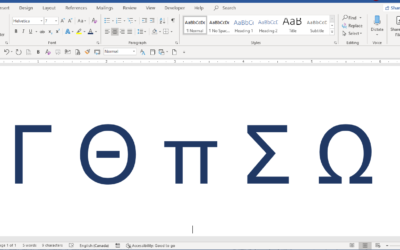
How to Insert Greek Letters or Symbols in Word (6 Ways)
You can enter Greek letters or symbols (such as Alpha, Beta, Delta, Gamma, Omega, Pi, Sigma or Theta) in Microsoft Word documents in several ways. In this article, we'll review 6 ways to insert Greek letters or symbols in Word.

How to Convert PowerPoint to Google Slides (5 Ways)
You can convert a PowerPoint presentation to Google Slides in several ways. You will first need to import or upload the PowerPoint deck into Google Slides and then make any changes you need. Google Slides will try to convert the presentation into compatible objects, tools and fonts but these programs do have differences so some elements may not convert well.

How to Change Table or Cell Border Color in PowerPoint
You can change the color of a table border or the borders of specific cells in PowerPoint. You can also change the border style and thickness (weight). Different borders can be applied to cells in the same table. For example, you could apply a thick line in a specific color to header cells and a thin line in a different color to the cells in the last row of a table. Borders can be applied to the top, bottom left or right side of a cell or cells. Tables are normally formatted first with table styles in PowerPoint and then you can apply custom borders to specific cells.

How to Delete a Pivot Table in Excel
A pivot table can be deleted in an Excel workbook in several ways. You can delete a pivot table, convert a pivot table to values or clear data and customizations from a pivot table to reset it. When a pivot table is created from source data in a workbook,
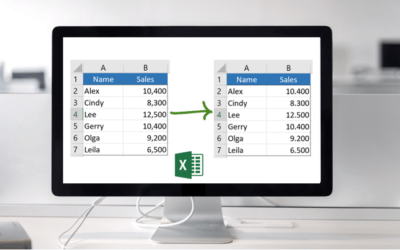
How to Change Commas to Decimal Points and Vice Versa in Excel (5 Ways)
Depending on your country or region, Excel may display decimal points or dots instead of commas for larger numbers. The decimal point (.) or comma (,) is used as the group separator in different regions in the world. You can change commas to decimal points or dots or vice versa in your Excel workbook temporarily or permanently.

How to Insert a Copyright or Trademark Symbol in Word (4 Ways with Shortcuts)
You can insert the copyright, trademark (TM) or registered trademark symbol in a Microsoft Word document using the Insert Symbol command or by using keyboard shortcuts. In this article, we'll review 4 ways to insert these symbols in Word.

How to Group by Month and Year in a Pivot Table in Excel
You can group by month, year or other date period in a pivot table in Excel. One option is to group by date periods in a pivot table using the Grouping feature. Alternatively, you can also create calculations in source data to extract the month name and the year from a date field and use the fields in your pivot table.

How to Rotate Objects in PowerPoint (4 Ways)
You can rotate objects in PowerPoint by dragging the rotation handle, entering an exact rotation amount or by using keyboard shortcuts. To rotate an object means to turn it around its center. Shapes, images and other objects can be rotated in Normal View or Slide Master View.

How to Compress Images in PowerPoint to Reduce File Size (10 Strategies)
There are many strategies you can use to compress images in PowerPoint presentations to reduce file size. It's common to use built-in compression features in PowerPoint to make large files smaller but you can also reduce image size before you insert pictures on your slides.

How to Blur Text in PowerPoint
Blur is an artistic effect that you can apply to a picture in PowerPoint. However, artistic effects cannot be applied to text boxes or text placeholders. If you want to blur text in PowerPoint, you'll need to cut the text object and then paste it back into PowerPoint as a picture. You will then be able to blur the text.

How to Superscript or Subscript in PowerPoint (with Shortcuts)
You can easily apply superscript or subscript to letters, numbers or symbols in PowerPoint. It's also simple to turn off or remove superscript or subscript. To apply these formats, you can use the Font dialog box or keyboard shortcuts.

How to Use Emphasis Animation to Highlight Text in PowerPoint
If you want to focus attention on a key point on a PowerPoint slide, you may want to highlight text. One way to do this is to use emphasis animation effects. You can use this type of animation to change the color of text, apply a fill to the shape containing the text or even have the text grow or shrink.

How to Strikethrough or Cross Out Text in PowerPoint (4 Ways with Shortcuts)
You can apply strikethrough to cross out or create a line through text using PowerPoint commands or keyboard shortcuts. Strikethrough can be effective to show that something has been removed or deleted. You can even add a Strikethrough button to the Quick Access Toolbar.

How to Add Animation in PowerPoint (Ultimate Guide)
You can add animation to images, text and other objects in PowerPoint. Animations can be entrance, exit, emphasis or motion path and can start on click or automatically when you run a slide show …
How to Align Objects in PowerPoint (4 Ways)
You can align objects on your PowerPoint slides in several ways. Objects you align may be shapes, images, placeholders or text boxes. The most common way to align objects is to use the Align command which appears on multiple tabs in the Ribbon.

How to Break, Update or Change Links to Excel Charts or Worksheets in Microsoft Word
If you want to break, update or change links to Excel charts or worksheets in Microsoft Word, you'll need to use the Edit Links to Files command. Unfortunately, this command is difficult to find. To make it easier to access, you can add Edit Links to Files to the Quick Access Toolbar.

Microsoft Teams Keyboard Shortcuts (40+ Shortcuts)
If you're a Microsoft Teams user, you can save alot of time using your keyboard to access Teams commands. Check out this essential list of keyboard shortcuts for Microsoft Teams for Windows users (Desktop).
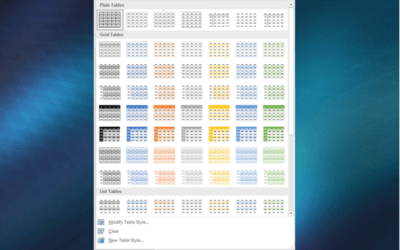
How to Format Microsoft Word Tables Using Table Styles (Ultimate Guide)
You can apply table styles to your Word tables to format them quickly and consistently. Use Word's built-in table styles or create your own. You can modify table styles by changing borders, shading and other formats and change all the tables in your docment.
To request this page in an alternate format, email our staff at info@avantixlearning.ca
Microsoft, the Microsoft logo, Microsoft Office and related Microsoft applications and logos are registered trademarks of Microsoft Corporation in Canada, US and other countries. All other trademarks are the property of the registered owners.
Avantix Learning | 1 Yonge Street, Suite 1801 (Toronto Star Building), Toronto, Ontario, Canada M5E 1W7 | info@avantixlearning.ca