
Microsoft Project: Introduction
This page has moved. Click on the link below to view the updated course outline.
You may like
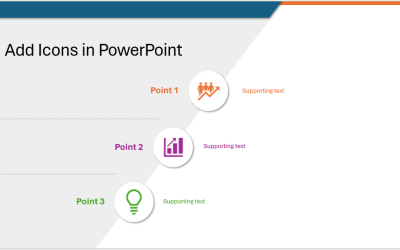
How to Insert and Format Icons in PowerPoint
You can curve text in PowerPoint using WordArt Transform options on the Shape tab in the Ribbon. The text can be WordArt text or text in a text box or in a placeholder. Using Transform text effects, you can curve or bend selected text. The text can be curved around a circle or other shape if you want. Typically, curved text is inserted in Normal View and can be a word or a line of text.

How to Highlight or Draw on PowerPoint Slides During a Slide Show
You can highlight text in PowerPoint in many different ways. If you have PowerPoint 2019 or a later version, Text Highlight Color is available on the Home tab in the Ribbon. For those with older versions without a Highlight command in the Ribbon, you'll need to use other strategies to highlight text. In this article, we'll review five ways to highlight text in PowerPoint. Most of these strategies will work in all versions.

How to Highlight Text in PowerPoint (5 Ways)
You can highlight text in PowerPoint in many different ways. If you have PowerPoint 2019 or a later version, Text Highlight Color is available on the Home tab in the Ribbon. For those with older versions without a Highlight command in the Ribbon, you'll need to use other strategies to highlight text. In this article, we'll review five ways to highlight text in PowerPoint. Most of these strategies will work in all versions.

How to Curve Text in PowerPoint
You can curve text in PowerPoint using WordArt Transform options on the Shape tab in the Ribbon. The text can be WordArt text or text in a text box or in a placeholder. Using Transform text effects, you can curve or bend selected text. The text can be curved around a circle or other shape if you want. Typically, curved text is inserted in Normal View and can be a word or a line of text.

How to Link to Another Slide in PowerPoint (4 Ways)
You can easily add a link or hyperlink to another slide in the same PowerPoint presentation. In this article, we'll review 3 ways to link to another slide – using a link or hyperlink, adding an action setting or using the Zoom feature (Zoom & Link) to add a Slide Zoom. In order to make it easier to link to another slide, it's best to add a title in the title placeholder on each slide in the presentation. In PowerPoint, links become active when you run a slide show (click the Slide Show button on the bottom right of the screen). When you run a slide show and click a link, PowerPoint will jump to the link.

How to Make Text Appear on Click in PowerPoint
You can make text appear on click in PowerPoint using entrance animations. The most common entrance animations are appear, fade, wipe and fly in. During a slide show, presenters can make text appear by line, bullet point, paragraph, word or character. In this article, we will focus on using animations to make text appear on click so you will need to run a slide show and then click anywhere on the slide to make the text appear. You can also press the right arrow or spacebar to make text appear during a slide show. Animations are typically added to placeholders or text boxes in Normal View but can be applied in Slide Master View.