
Microsoft PowerPoint: Upgrading to PowerPoint 2016
PowerPoint Training Series | Level 3
Course Details
Duration: 1 day
Microsoft® PowerPoint® Version: 2016
Delivery Methods: Instructor-led classroom (ILC) | Virtual classroom (VC) on request
Course Dates: July 18, 2018 | View schedule 
Course Fee: $295 CDN per person + HST or BYOD (bring your own device): $245 CDN person + HST*
Note: Public scheduled dates for this course are delivered as live instructor-led classroom training.

Course Overview
Learn great new features in Microsoft PowerPoint 2016 during this hands on training course. Work with new commands, apps and add-ins to get the most out of PowerPoint. Students use new design, animation and transition tools as well as create screen captures using the exciting new screencasting tool. This course will also focus on sharing presentations as well as collaborating in various ways in 2016.
Prerequisite: Intermediate / Advanced PowerPoint 2007 or 2010 or equivalent knowledge and skills.
Custom training: This course may be delivered at your site or ours as an instructor-led or virtual classroom solution. Contact us at info@avantixlearning.ca for more information including savings for custom group training.
Related training: View all Microsoft PowerPoint courses
INCLUDED IN THIS COURSE
- Comprehensive course manual
- Keyboard shortcuts quick reference
- Sample and exercise files
- Refreshments (for classes conducted in Avantix Learning classrooms)
- Certificate of completion
- Follow-up email support
Course Topics
Working in the Microsoft PowerPoint 2016 Environment
- Changes in the Ribbon in PowerPoint 2016
- Overview of new commands and features in 2016
- Adding commands to the Ribbon and creating new tabs
Designing Presentations
- Using new themes, variations and templates
- Aligning objects with Smart Guides
- Merging shapes
- Colour matching with the eyedropper tool
Animations and Transitions
- Overview of new animation and transition effects
- Transitioning with cinematic motion using Morph (365 only)
Using PowerPoint's Designer
- Using design recommendations with PowerPoint's new Designer (365 only)
New Chart Templates
- Creating charts using new chart templates including Treemap, Waterfall, Pareto, Histogram, Box and Whisker and Sunburst
Creating Widescreen Presentations
- Converting older presentations to widescreen
- Making use of widescreen themes and templates
Using Enhanced Presenter Tools
- Setting up Presenter View with multiple output devices
- Viewing notes and slides in Presenter View
- New features in Presenter View
- Zooming in on a portion of slide
- Going to a specific slide during a presentation
Working with Audio and Video in PowerPoint 2016
- New multimedia formats that are supported in 2016
- Using the Play in Background feature
- Converting a PowerPoint presentation to video
- Creating a screencast or screen recording in PowerPoint
Creating and Sharing Presentations
- Sharing presentations in different ways
- Recording your screen using PowerPoint 2016's new screencasting functionality
- Annotating audio
- Recording audio or video speaker notes
- Analytics for audience views of uploaded presentations
On-line Meetings with PowerPoint
- Sharing PowerPoint presentations on the Web
- Sending out links to slides
- Starting and managing a Lync meeting using the Office Presentation Service
Collaborating on Presentations
- Working with staff together on the same presentation with different devices
- Using the comments pane to provide feedback to others
- Showing and hiding comments and revisions
Managing Presentation Files
- Saving PowerPoint presentations as Portable Document Format (PDF) documents
- Storing presentations on cloud-based services such as OneDrive
Other Apps and Add-ins
- Apps and add-ins in 2016
- Inserting quizzes
Register Now for a public course at our downtown Toronto location at 1 Yonge Street, Suite 1801 (Toronto Star Building), Toronto, Ontario, Canada.
Do you need more information? Contact us!
To request this page in an alternate format, contact our staff.
*Prices subject to change.
Copyright 2026 Avantix® Learning

Custom training
Register now for a public scheduled course or contact us to discuss custom on-site or off-site raining options.
Related courses
Microsoft PowerPoint: Introduction
Microsoft PowerPoint: Intermediate / Advanced
Microsoft PowerPoint: Design for Non-Designers
You may like
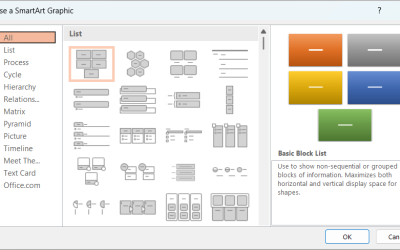
How to Insert SmartArt in PowerPoint (5 Ways)
SmartArt graphics are pre-defined graphics that are treated as one object and follow the document theme, font theme and color theme unless a user manually changes the font and font and shape colors. SmartArt graphics are also "smart" in several ways such as resizing other components if a new shape is added and changing font size. You can insert SmartArt in several ways in PowerPoint. SmartArt objects are typically inserted on PowerPoint slides in Normal View.
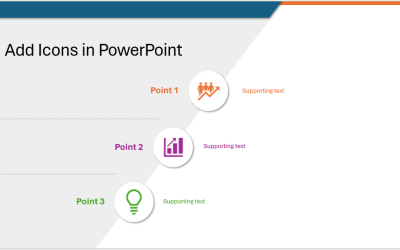
How to Insert and Format Icons in PowerPoint
You can curve text in PowerPoint using WordArt Transform options on the Shape tab in the Ribbon. The text can be WordArt text or text in a text box or in a placeholder. Using Transform text effects, you can curve or bend selected text. The text can be curved around a circle or other shape if you want. Typically, curved text is inserted in Normal View and can be a word or a line of text.

How to Highlight or Draw on PowerPoint Slides During a Slide Show
You can highlight text in PowerPoint in many different ways. If you have PowerPoint 2019 or a later version, Text Highlight Color is available on the Home tab in the Ribbon. For those with older versions without a Highlight command in the Ribbon, you'll need to use other strategies to highlight text. In this article, we'll review five ways to highlight text in PowerPoint. Most of these strategies will work in all versions.
How to Highlight Text in PowerPoint (5 Ways)
You can highlight text in PowerPoint in many different ways. If you have PowerPoint 2019 or a later version, Text Highlight Color is available on the Home tab in the Ribbon. For those with older versions without a Highlight command in the Ribbon, you'll need to use other strategies to highlight text. In this article, we'll review five ways to highlight text in PowerPoint. Most of these strategies will work in all versions.
You may also like
How to Print a Word Document Without Comments
If you or another user have added comments in a Word document, you may want to print the document without comments. By default, when you print a Word document, comments are printed as well. There are a few ways you can print a Word document without printing the comments – hide the comments or change print settings. If you use either of these strategies, the comments are not deleted.

How to Cut, Copy and Paste Text in Word (5 Ways with Shortcuts)
In this guide, we'll cover 5 ways to cut, copy and paste text in Microsoft Word. A common method is to use keyboard shortcuts but you can also use the Ribbon, the context menu and a few hidden tools as well. After you paste your text, you can choose paste options such as Keep Text Only.

How to Insert or Type an Upside Down Exclamation Mark in Word (5 Ways to Insert ¡ with Shortcuts)
This guide covers five easy ways to insert or type the upside down exclamation mark (¡) in Microsoft Word including shortcuts, Alt codes and custom key combinations. The upside down exclamation mark or inverted exclamation mark is used in the Spanish language at the beginning of exclamatory sentences and helps readers understand tone before completing the sentence.
Microsoft, the Microsoft logo, Microsoft Office and related Microsoft applications and logos are registered trademarks of Microsoft Corporation in Canada, US and other countries. All other trademarks are the property of the registered owners.
Avantix Learning | 1 Yonge Street, Suite 1801 (Toronto Star Building), Toronto, Ontario, Canada M5E 1W7 | info@avantixlearning.ca